
Table of Contents
When you are looking for a simple and user-friendly trading platform that allows manual and automatic backtesting on extensive historical data, you will find only a few solutions that meet these criteria. If, in addition, your budget is limited and you cannot afford to pay for the platform and data, then your options are narrowed down to a single choice – the MetaTrader 5 trading platform.
This practical guide will explain in depth how to backtest a trading strategy on the MetaTrader 5 trading platform, both manually and automatically. You will also learn how to download historical 1-minute and tick data for a selected market or how to use keyboard shortcuts to speed up the backtesting process.
On the other hand, the MetaTrader backtesting guide does not cover the theoretical part of backtesting and topics closely related to it. It does not deal with backtesting methods, the differences between automated and manual backtesting, types of historical data, or the requirements of a backtesting spreadsheet and trading plan. Therefore, if you do not yet have the necessary basic knowledge of strategy testing, you should first start by studying the How to Backtest a Strategy guide, which covers these subjects in great detail.
What is MetaTrader?
MetaTrader is a popular trading platform used by traders to analyze financial markets, place trades, and manage trading accounts. It’s especially common in forex (foreign exchange) trading, but it’s also used for CFDs (Contracts for Difference), commodities, indices, stocks, and cryptocurrencies.
It has gained popularity thanks to forex and CFD brokers who offer it to their clients completely free of charge, including live data.
There are two main versions:
- MetaTrader 4 (MT4) – released in 2005, mainly designed for forex trading.
- MetaTrader 5 (MT5) – released in 2010, a more advanced and versatile version that supports more asset classes and timeframes.
Key features of MetaTrader 5 trading platform:
- Charting & Analysis Tools: You can view price charts, apply technical indicators, and use drawing tools to analyze the market.
- Order Execution: Allows you to buy and sell assets using a variety of trading orders.
- Automated Trading (Expert Advisors, or EAs): You can run trading robots that execute trades automatically based on predefined rules.
- Custom Indicators & Scripts: Traders with programming skills can code custom tools using MQL4 (for MT4) or MQL5 (for MT5) programming language.
- Backtesting: You can test your strategies using historical data to see how they would have performed in the past.
- Broker Integration: The platform can be connected to a truly enormous number of forex and CFD brokers.
- MQL Market: The capabilities of the trading platform can be easily expanded by purchasing indicators, utilities, tools, scripts, or expert advisors through the MQL Market.
What You Need for Backtesting on Metatrader 5
To start testing your trading strategy on the MetaTrader 5 trading platform, you will need the following:
- MetaTrader 5 trading platform
- Historical data
- Trading plan
- Backtesting spreadsheet (for manual backtesting)
Getting MetaTrader 5
If you don’t already have MetaTrader 5 installed on your PC or Mac, your first task will be to download the installation file. There are two ways to do this:
- Download MetaTrader from the developer’s official website.
- Download MetaTrader from the website of any broker that offers this platform.
This guide will show you how to proceed with the second option. For this purpose, we will use the popular and reliable broker BlackBull Markets. Please follow these steps:
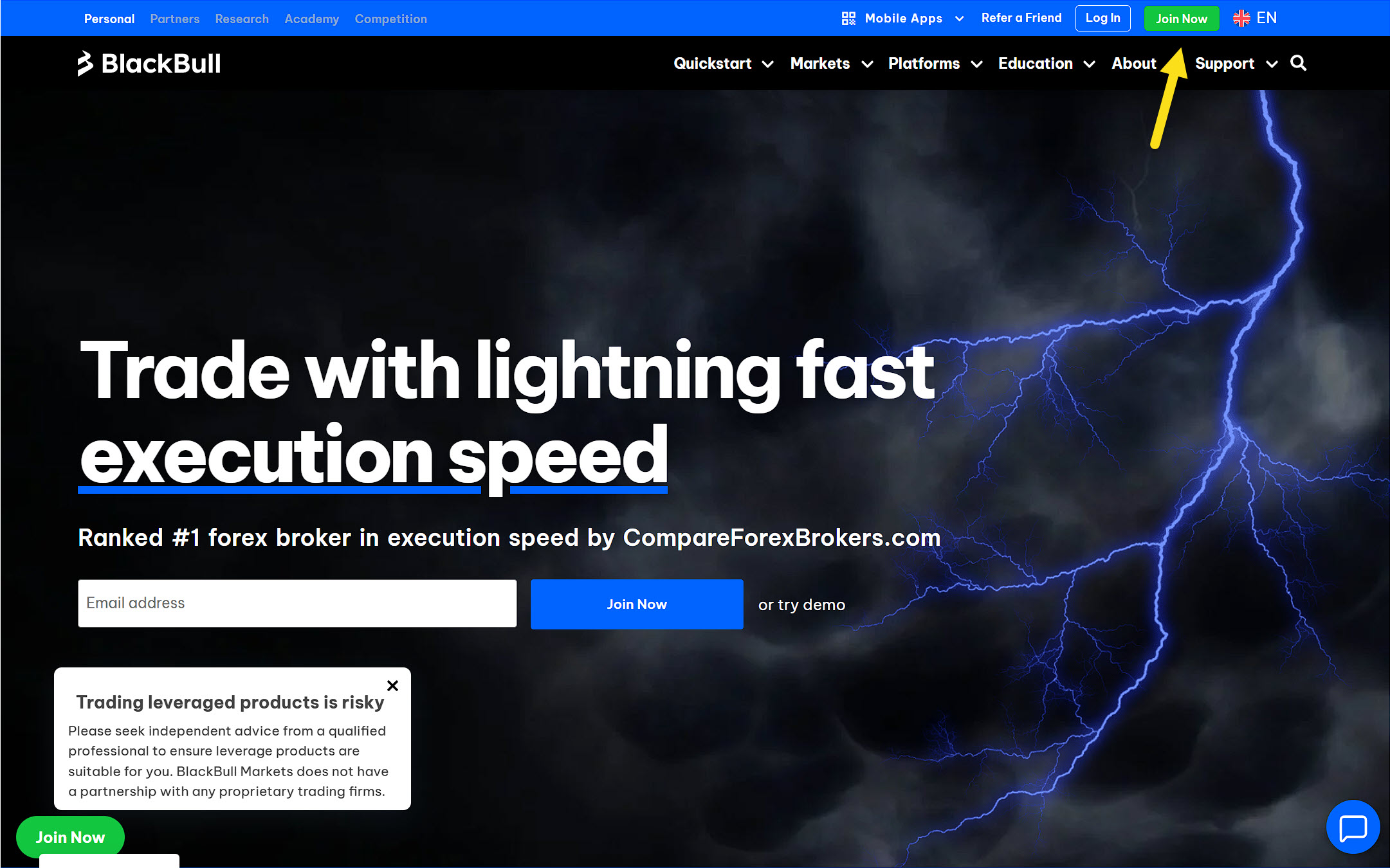
Go to the BlackBull Markets homepage and click on the Join Now button.
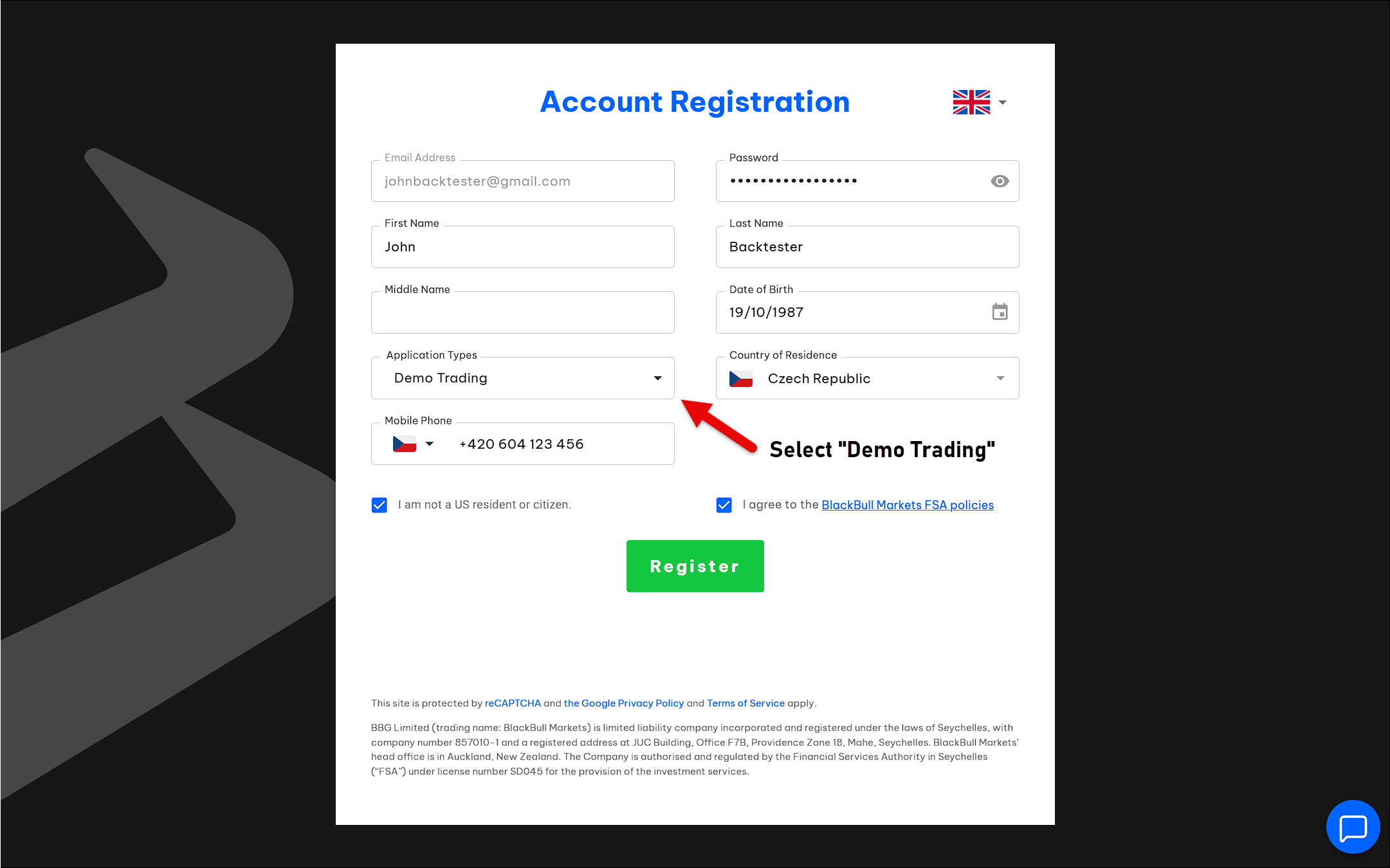
Fill in all the necessary information to create a new demo account and then submit the form by clicking on the Register button.
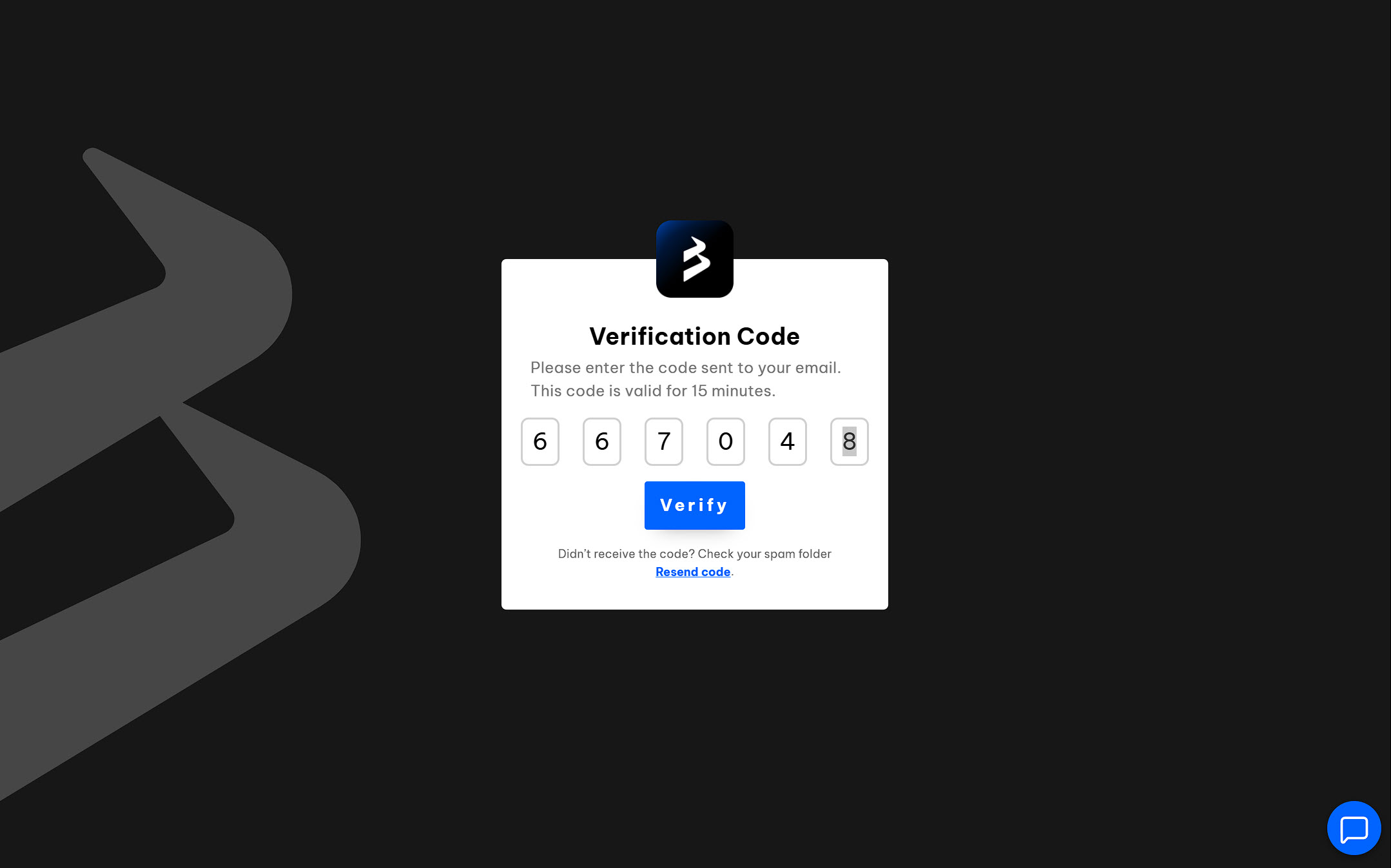
Enter the verification code that was sent to your email. If you cannot find it in your inbox, check your SPAM folder.
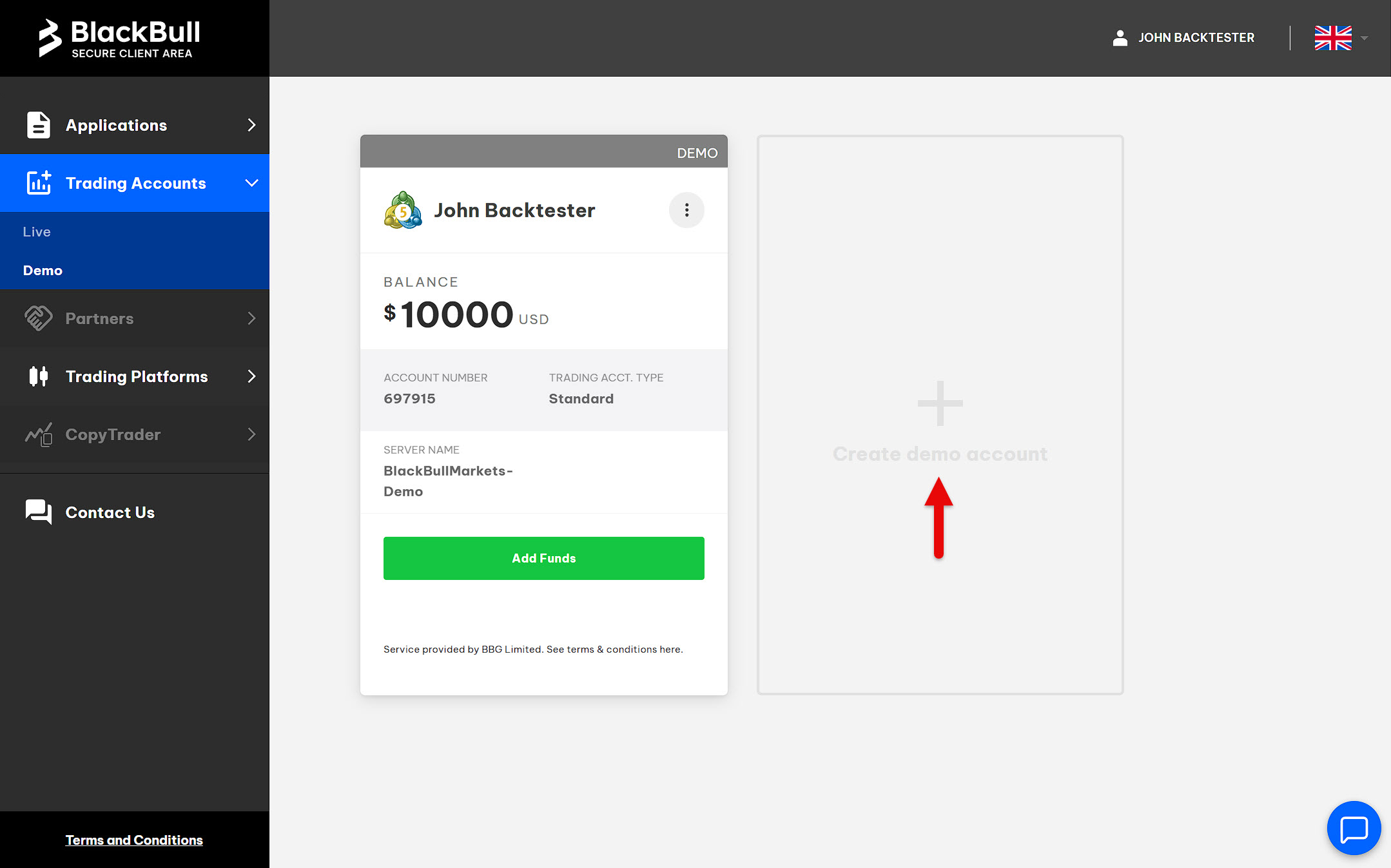
You should see your first demo account created in the client area. However, if there is no account or you want to create a new one with different parameters, click on Create Demo Account.
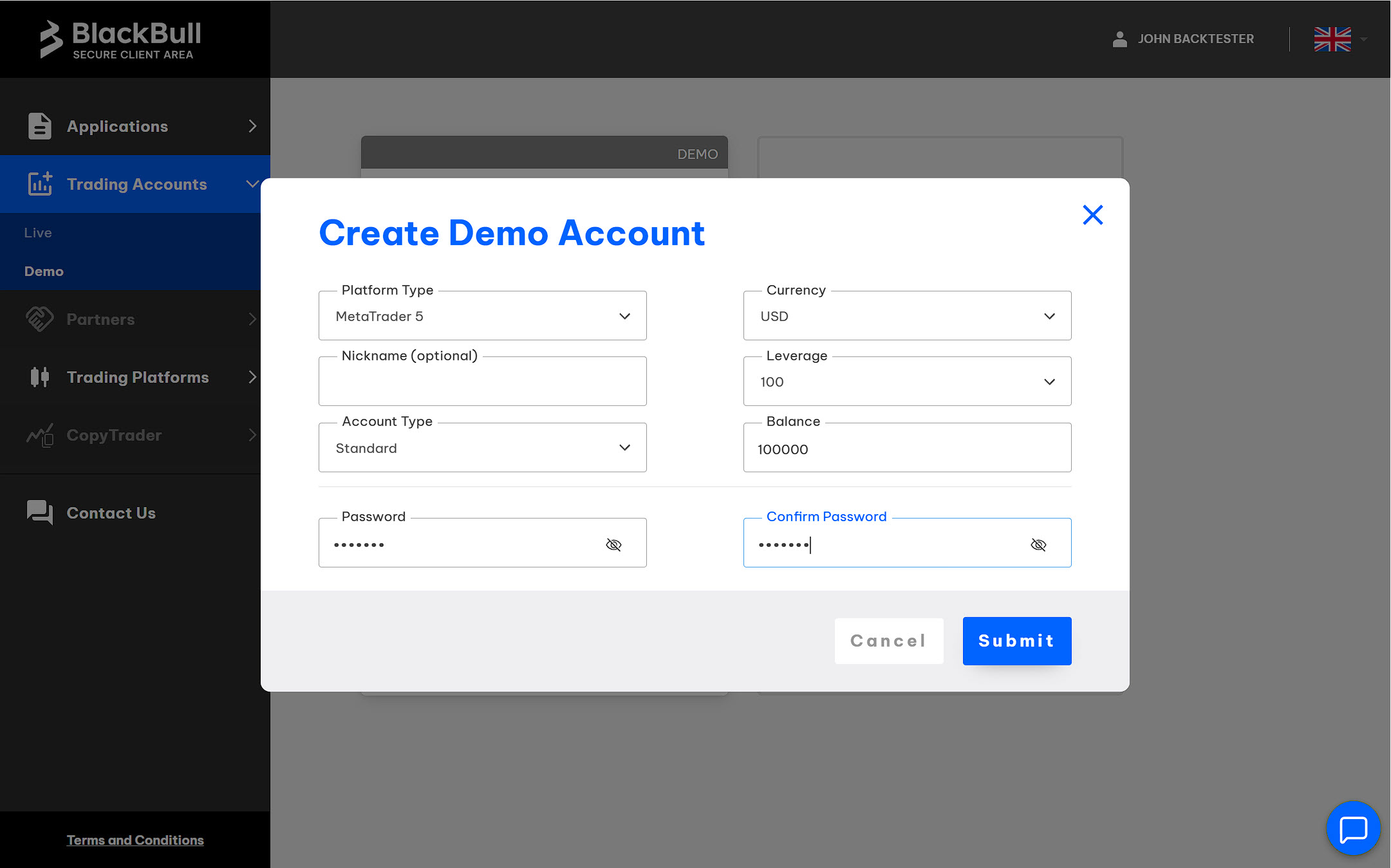
If necessary, create a new demo account. Fill in all the required fields and press the Submit button.
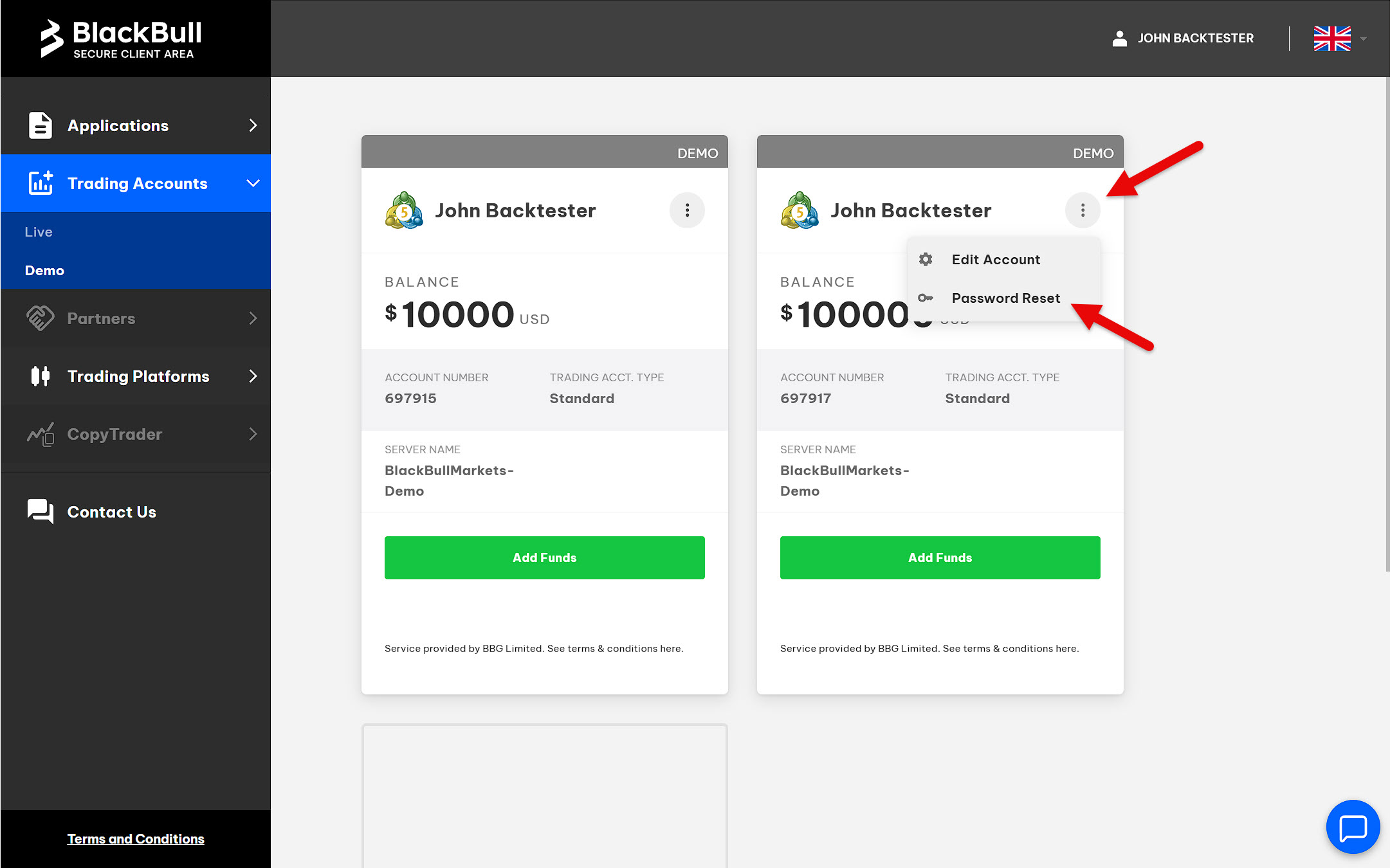
In the future, you may forget the password to your demo account. For this case, keep in mind that the password can be reset for any of your demo accounts.
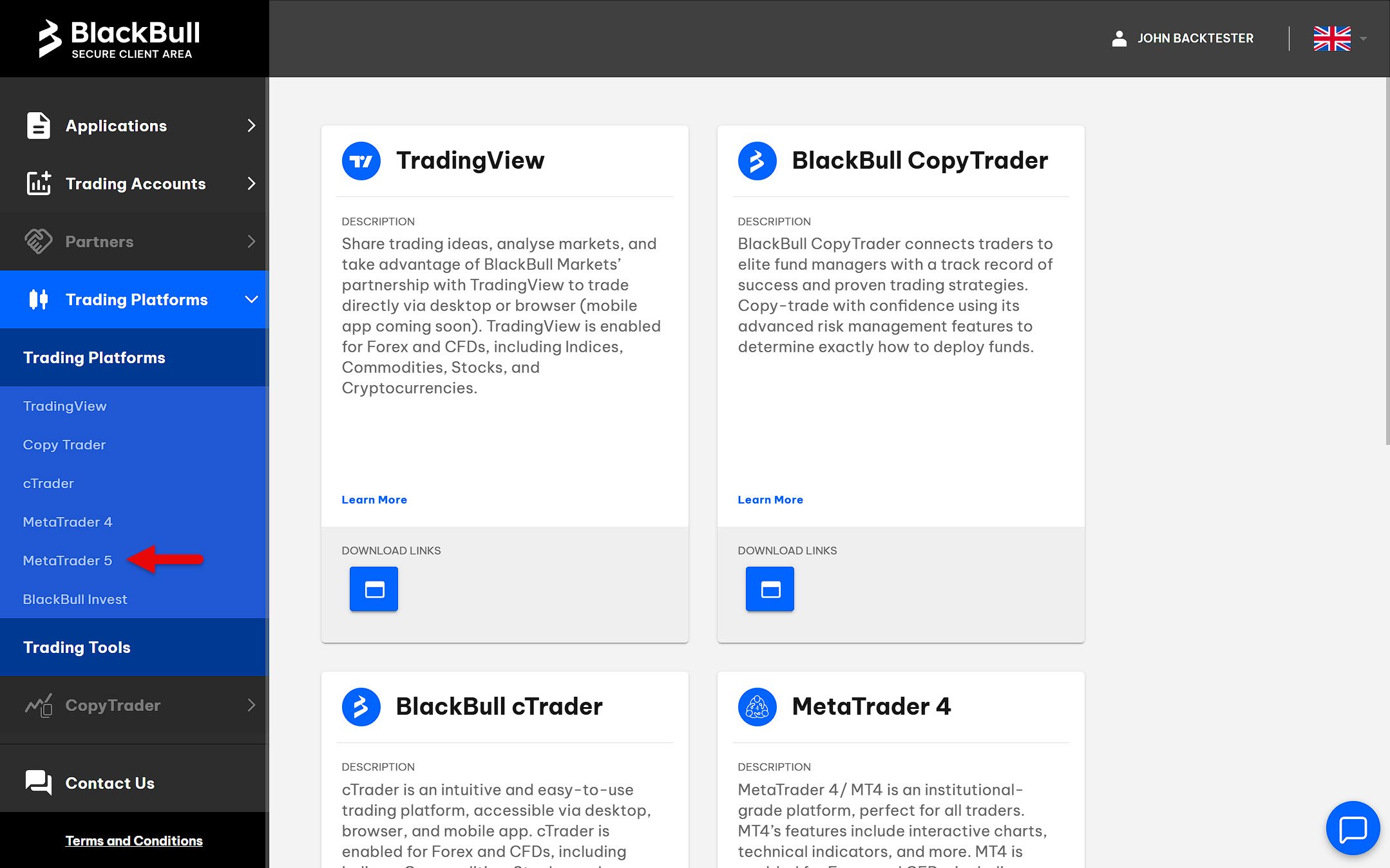
Now go to the Trading Platforms section and click on MetaTrader 5.
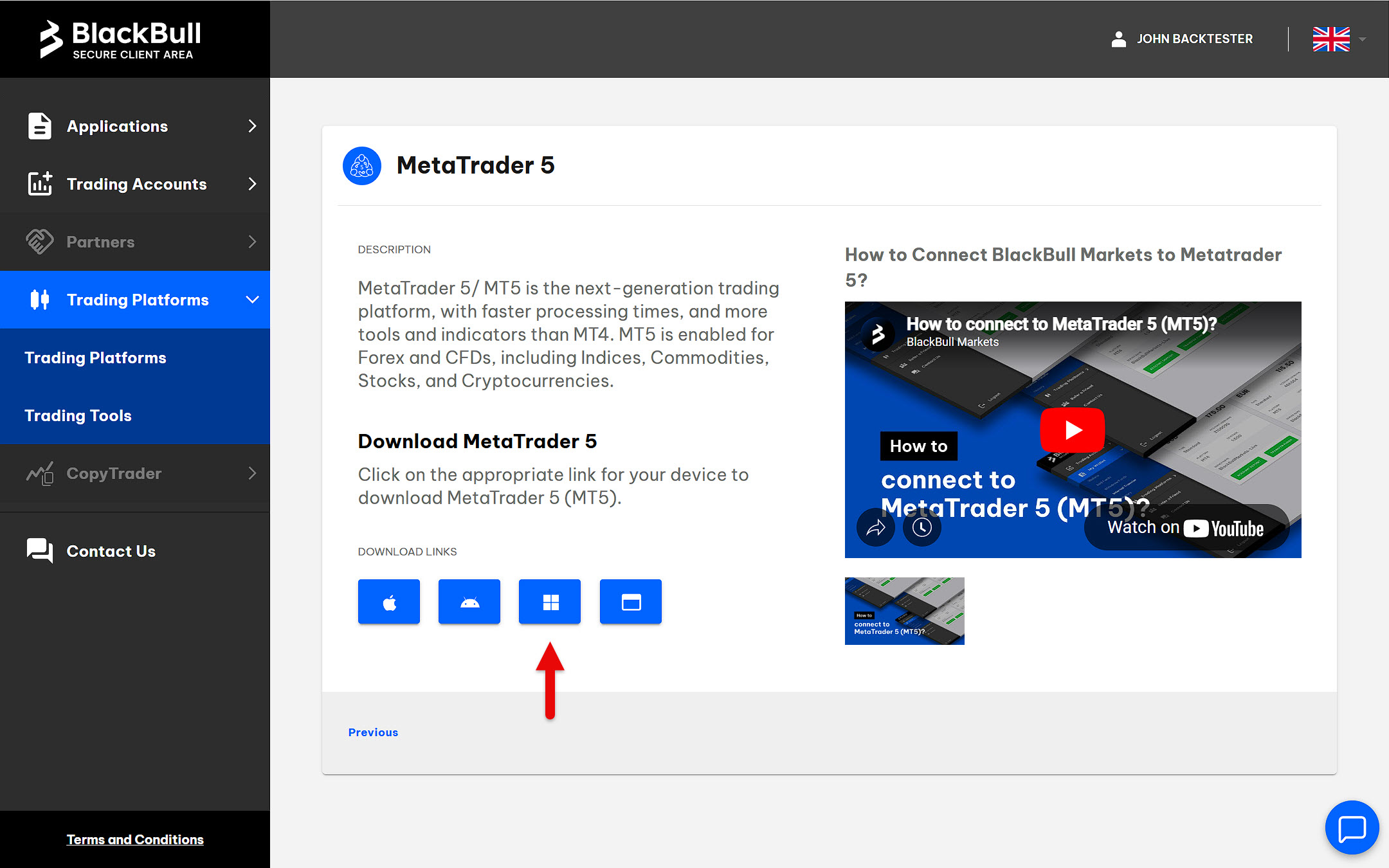
Select your operating system and download the trading platform to your device. Then, start the installation and follow the instructions.
If MetaTrader does not start automatically after installation, launch it manually.
Log in to your account. File > Login to Trade Account.
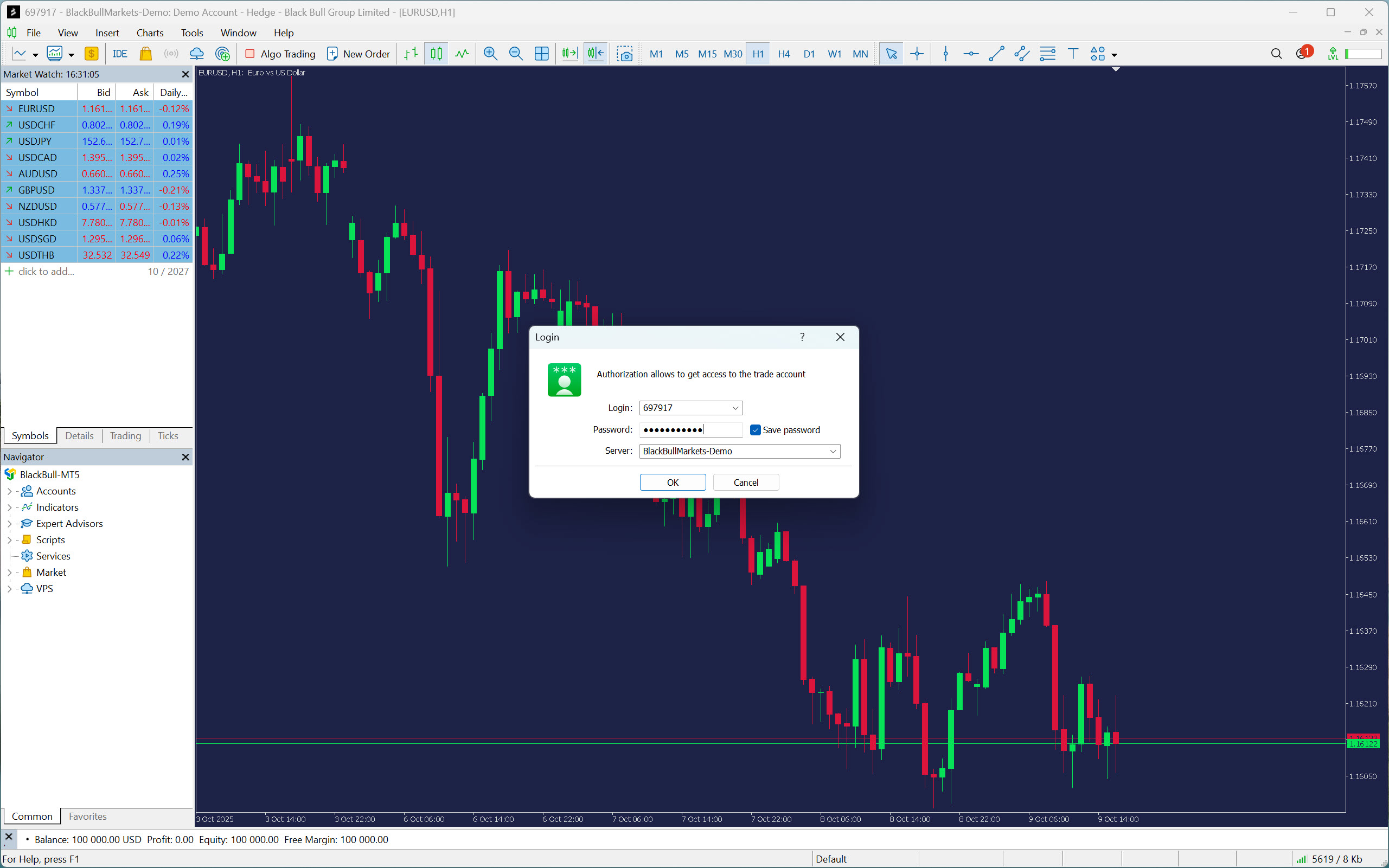
Great! You have fulfilled the first requirement, so now you can move on to the next step, which is importing historical data.
Getting Historical Data for MetaTrader 5
Once MetaTrader connects to the broker’s server, it immediately begins downloading historical data for preset symbols (instruments). However, this data does not go very deep. For example, in the case of a 1-minute time frame, it is often only a few weeks, or in the best case, a few months of historical data. This is obviously not sufficient for backtesting.
In order to test strategies, it will be necessary to download the data manually, with two possible methods available.
- Downloading data via MetaTrader 5: The fastest way to access historical data. The quality and depth of the data depend on your broker.
- Downloading data via Quant Data Manager: A downloader that allows you to obtain data from several providers, including Dukascopy, which offers high-quality historical tick data for many symbols.
You will learn how both methods work in a moment. However, before we get to them, you will first need to change your MetaTrader settings.
By default, MetaTrader is set to display a maximum of 10,000 bars on a chart. If you wanted to backtest on a 1-minute chart, this limit would allow you to perform approximately seven days of backtesting. It goes without saying that this limitation needs to be removed.
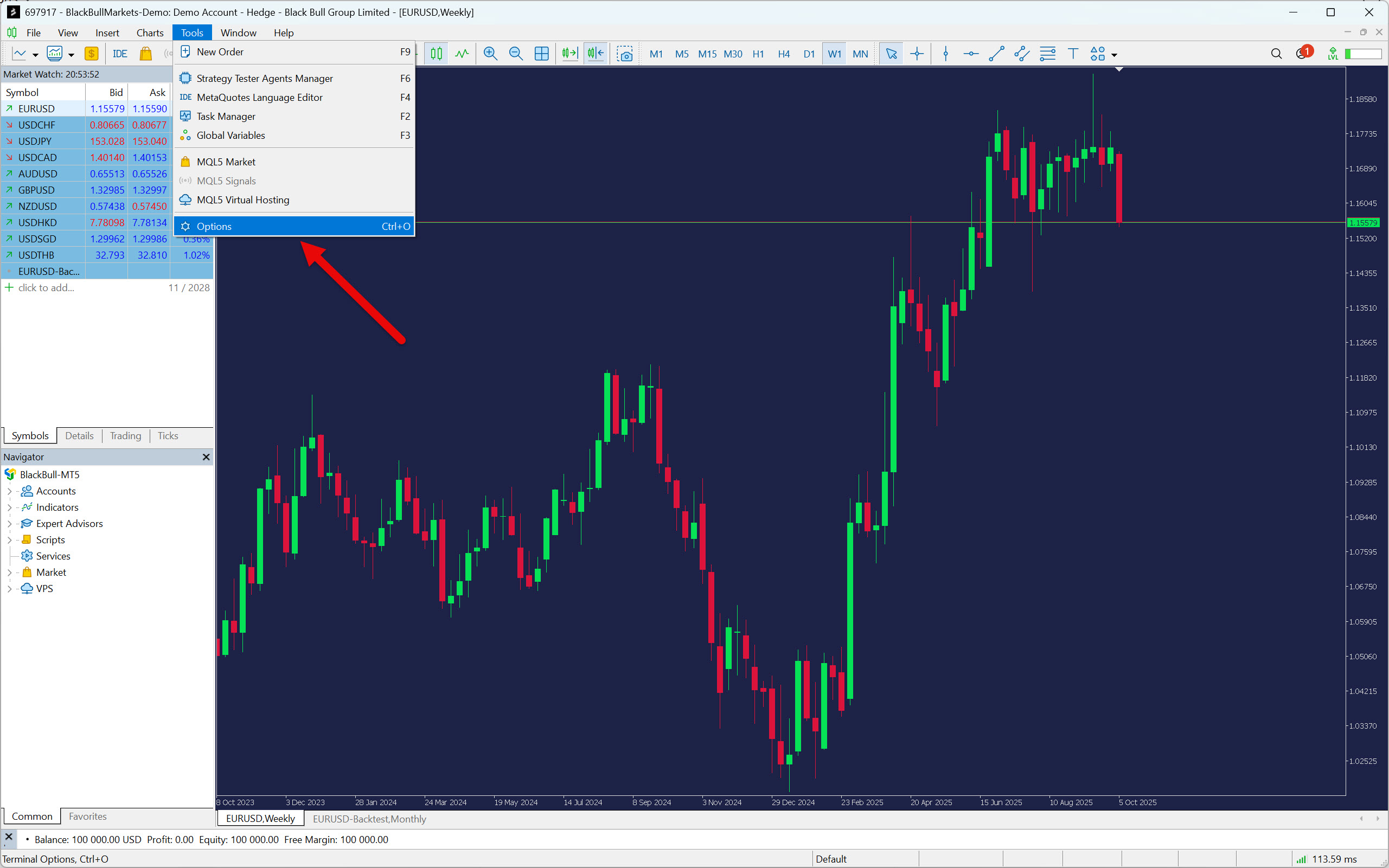
Fortunately, changing the bar limit is very easy. In the platform window, select Tools and then Options. Alternatively, you can press the keyboard shortcut Ctrl+O.
In the newly opened window, select the “Charts” tab. Here you will find the Max bars in chart setting. Select Unlimited and click the “OK” button.
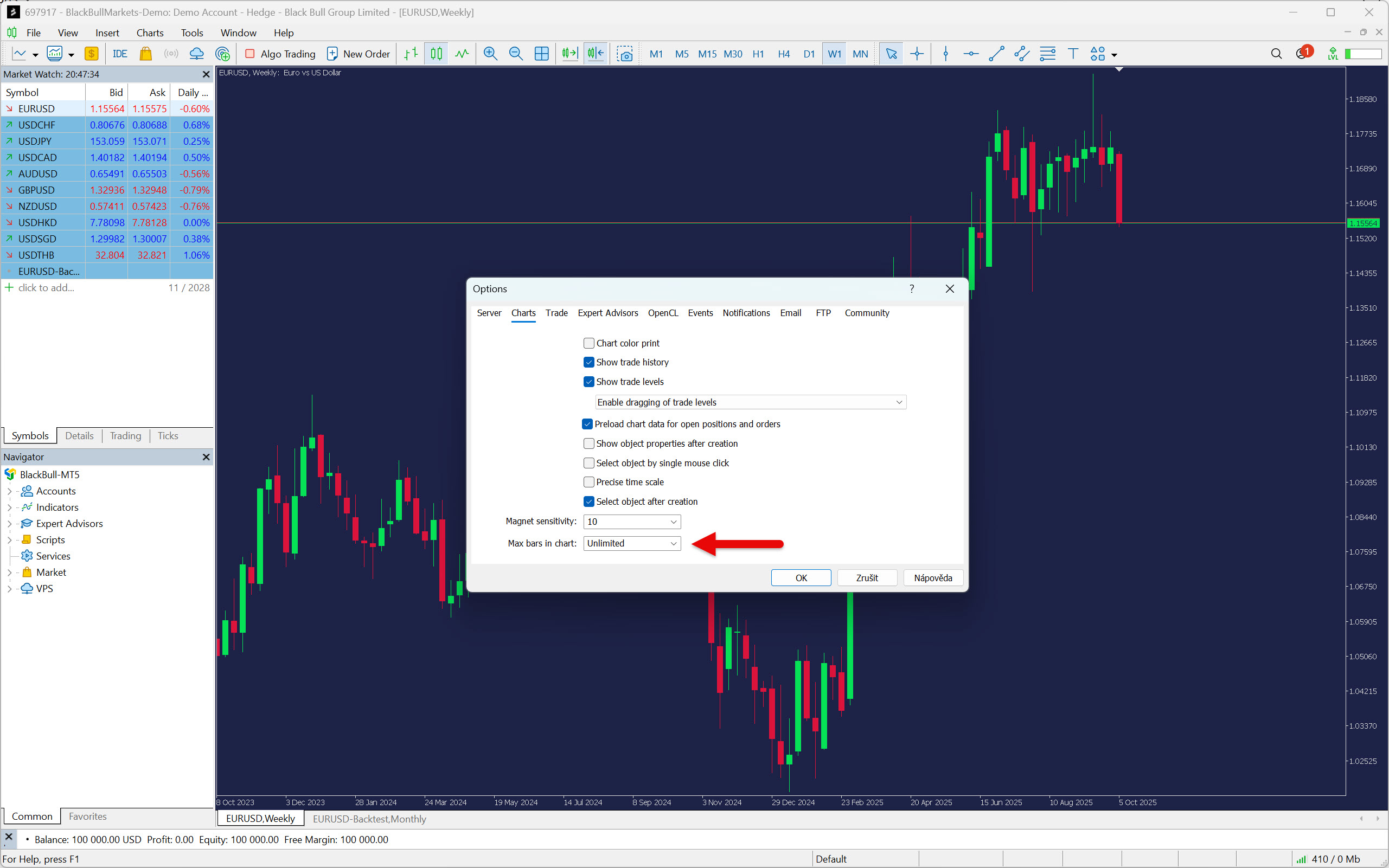
To apply the change, you need to restart the platform. After that, MetaTrader should allow you to view the deep history of bars (candles).
Downloading Data via MetaTrader 5
The easiest way to get a long data history into MetaTrader is to use the built-in downloader. It offers the option of downloading both 1-minute and tick-by-tick historical data. If you choose the latter one, keep in mind that you will need enough free disk space. To get an idea of how much, here is a guide:
- One year of minute data for EURUSD – 20.7 Mb
- One year of tick data for EURUSD – 2.41 Gb
That’s a significant difference, isn’t it?
As an example, you will see how to download 1-minute data, although the procedure is similar for tick-by-tick data.
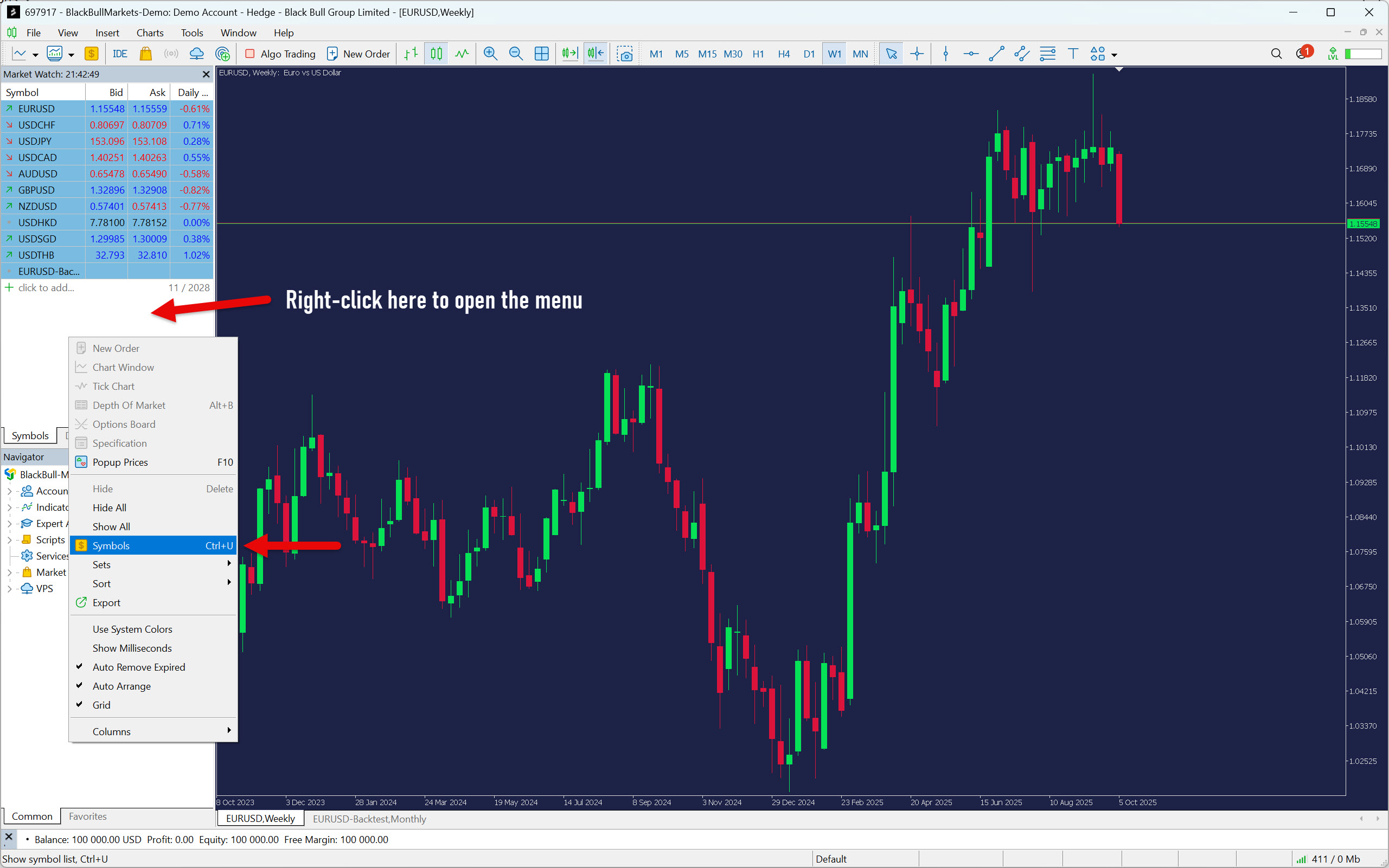
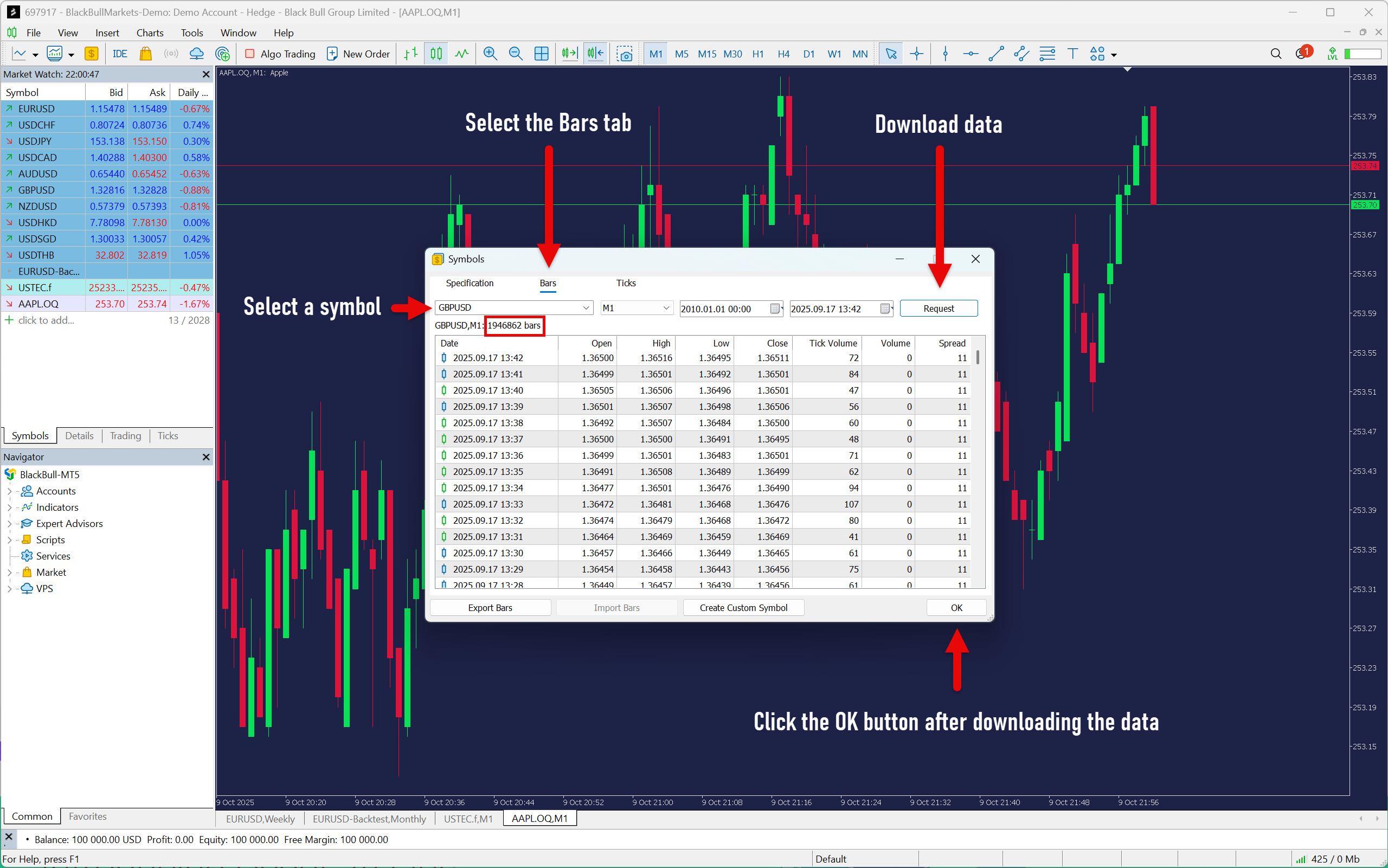
In the Market Watch window, right-click to open the menu and then select Symbols. You can also use the keyboard shortcut Ctrl+U.
Go to the Bars tab and from the drop-down menu select the symbol (market) for which you want to download 1-minute data (M1). After that, select the period and then press the Request button. The data will start downloading.
If the data does not appear in the window after a while, press the Request button again. The data should load.
Close the downloader by pressing the OK button in the lower-right corner.
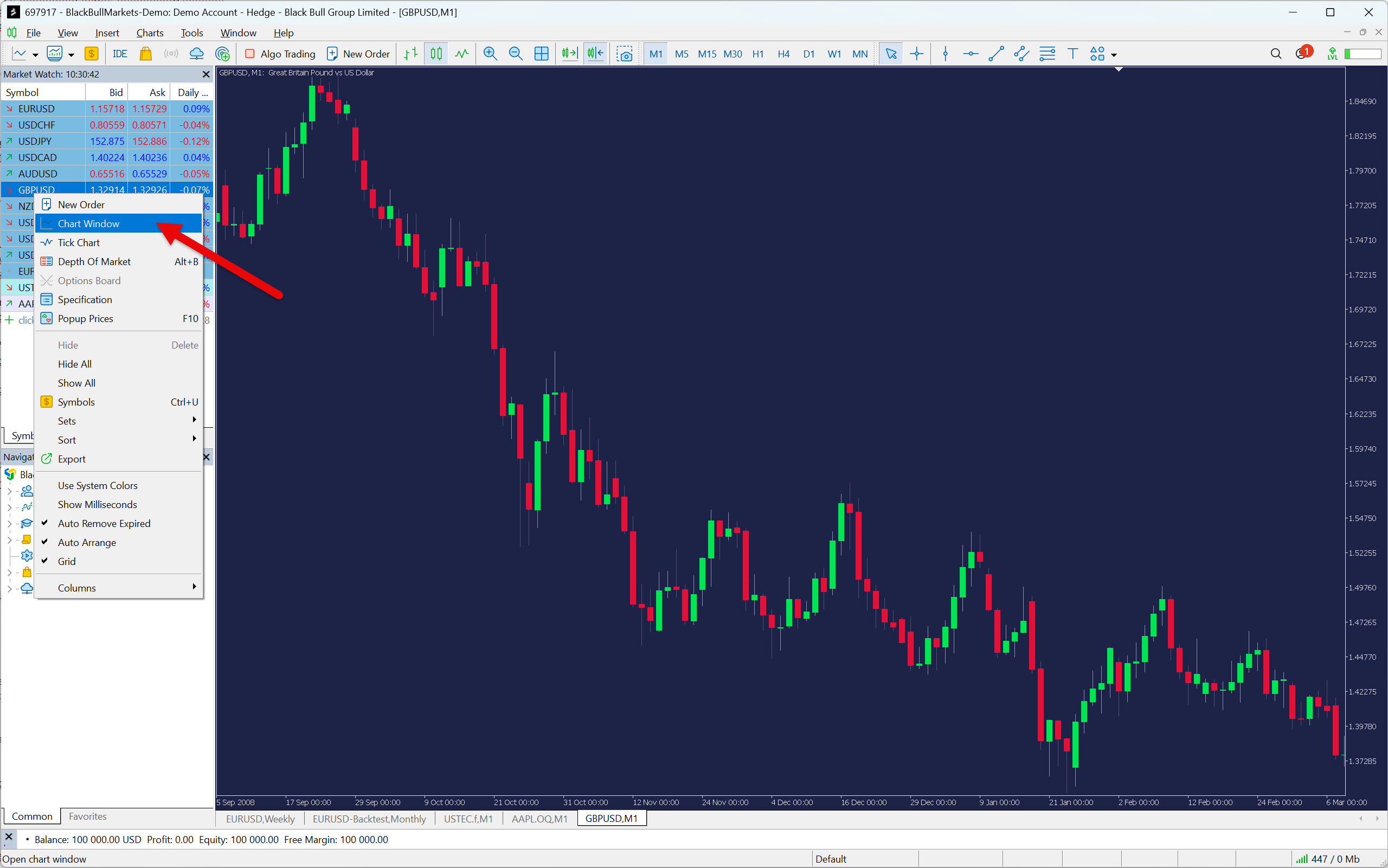
To verify that you have actually downloaded historical data, open a one-minute chart of your market and scroll to the very beginning.
You can do this by right-clicking on the relevant symbol in the Market Watch window and selecting Chart Window. After opening the chart, press the Home key on your keyboard to take you to the very beginning of the data. The first candle on the chart should start with the date you selected in the downloader.
Downloading Data via Quant Data Manager
The second option for obtaining historical data for your MetaTrader is to use Quant Data Manager. It can download historical data from Dukascopy, Darwinex, Yahoo Finance, and several popular cryptocurrency exchanges such as Binance and Coinbase.
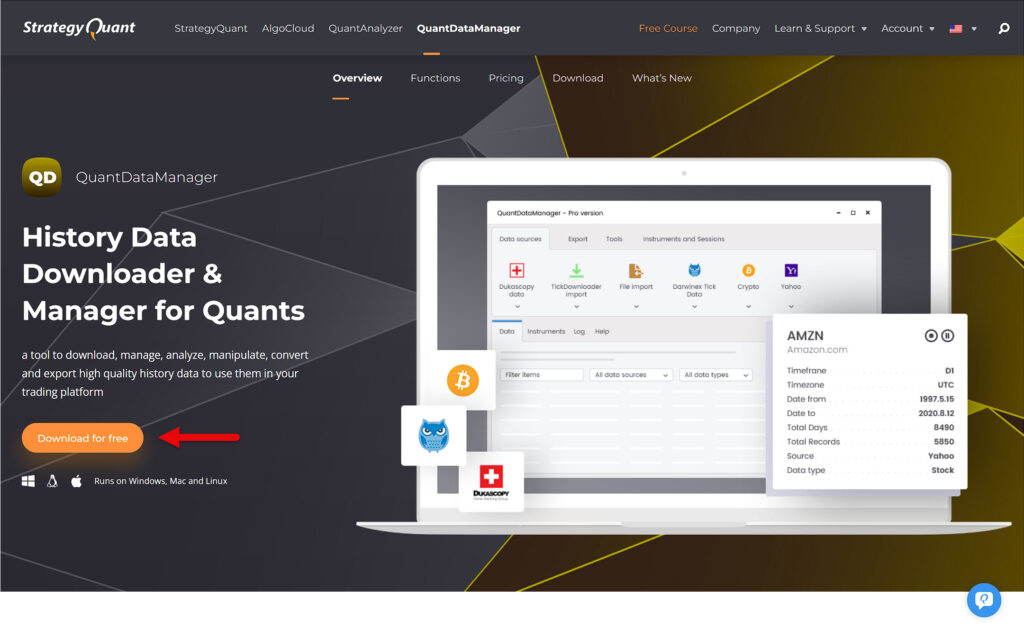
Start by downloading the free version of Quant Data Manager and then installing it on your device.
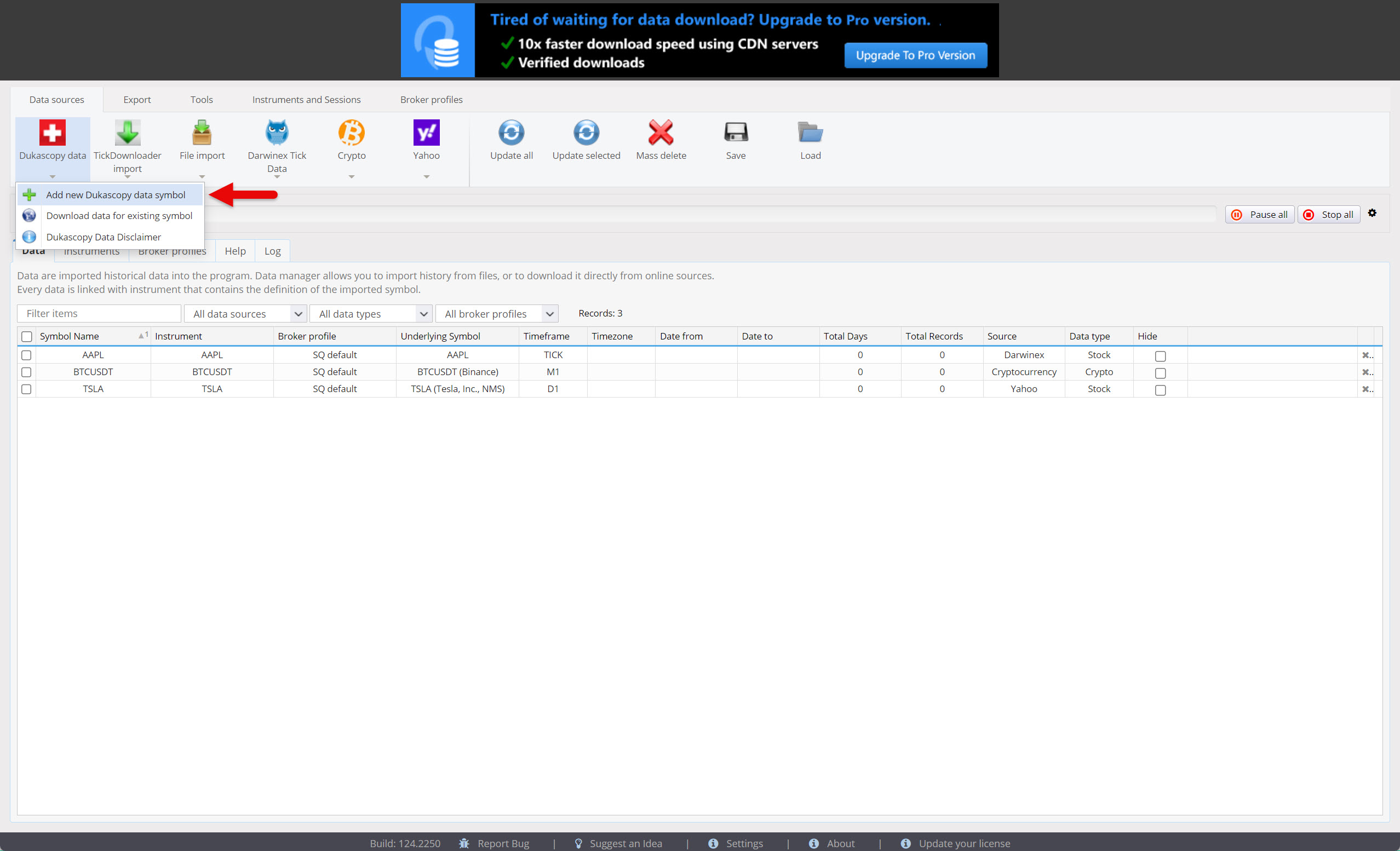
Launch Quant Data Manager and add the symbol (ticker) you want to download. The example below shows the procedure for downloading 1-minute and tick-by-tick data for EURUSD from Dukascopy.
Go to Dukascopy Data and click on this button. A menu will appear from which you can select Add new Dukascopy data symbol.
Select the symbol, data type, and confirm your agreement with the Data Disclaimer. Then press the Save button.
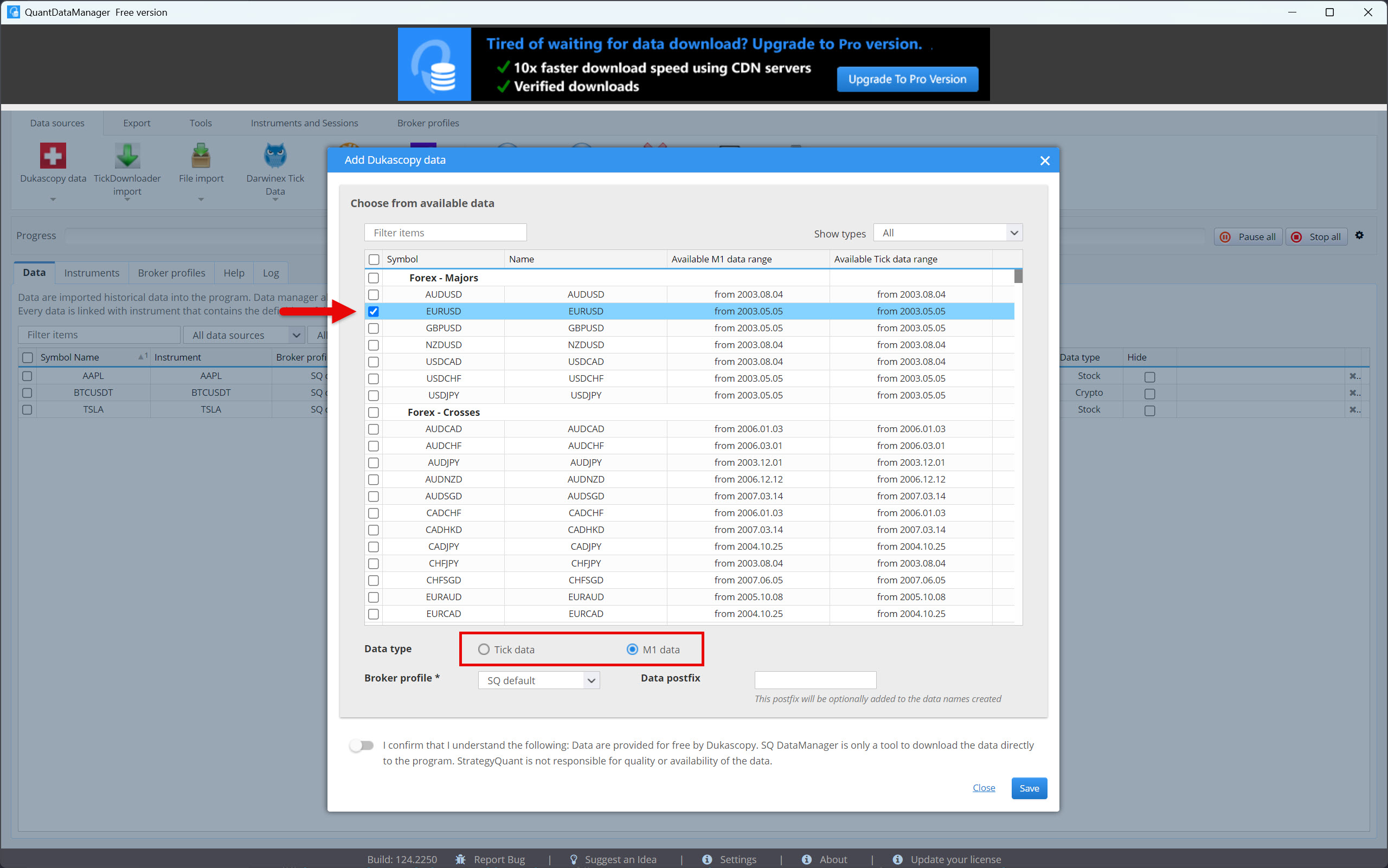
In this example, we will download both tick and one-minute data. Therefore, we will add the EURUSD forex pair twice.
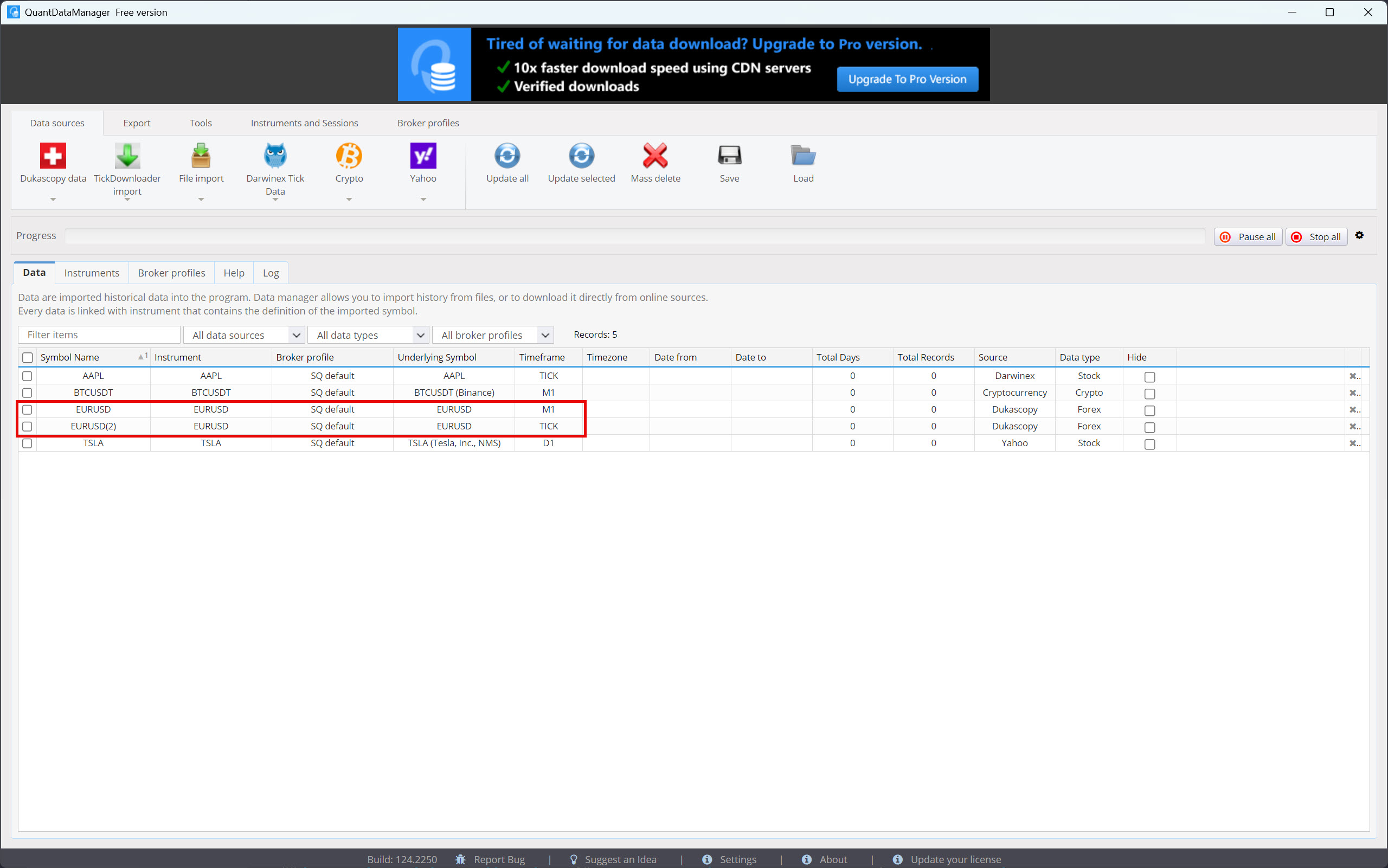
If you want, you can set the default spread. Go to the Instruments tab and find your symbol. Then double-click on it to open the symbol settings. Set the spread and press the Save button.
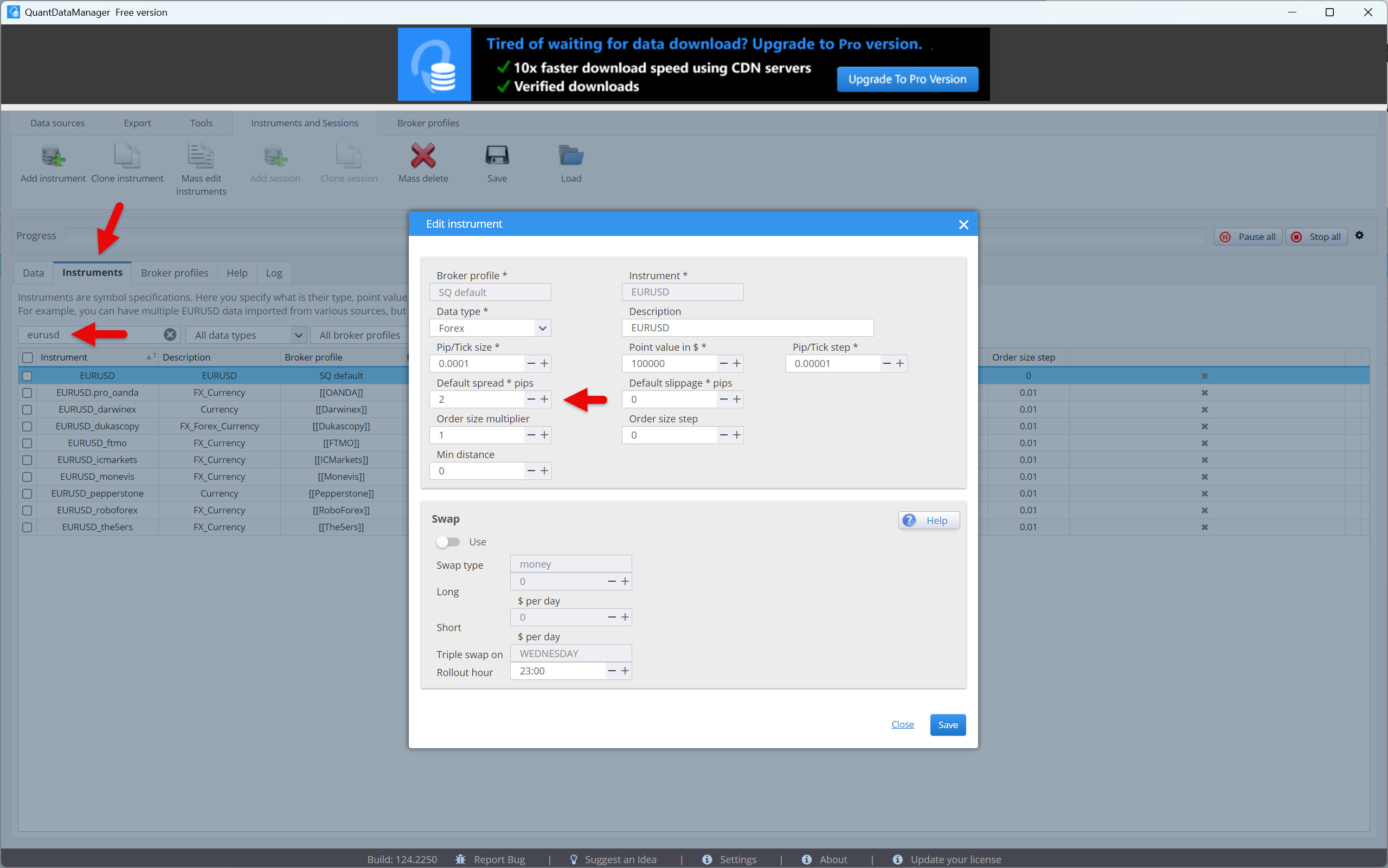
You can now download historical data.
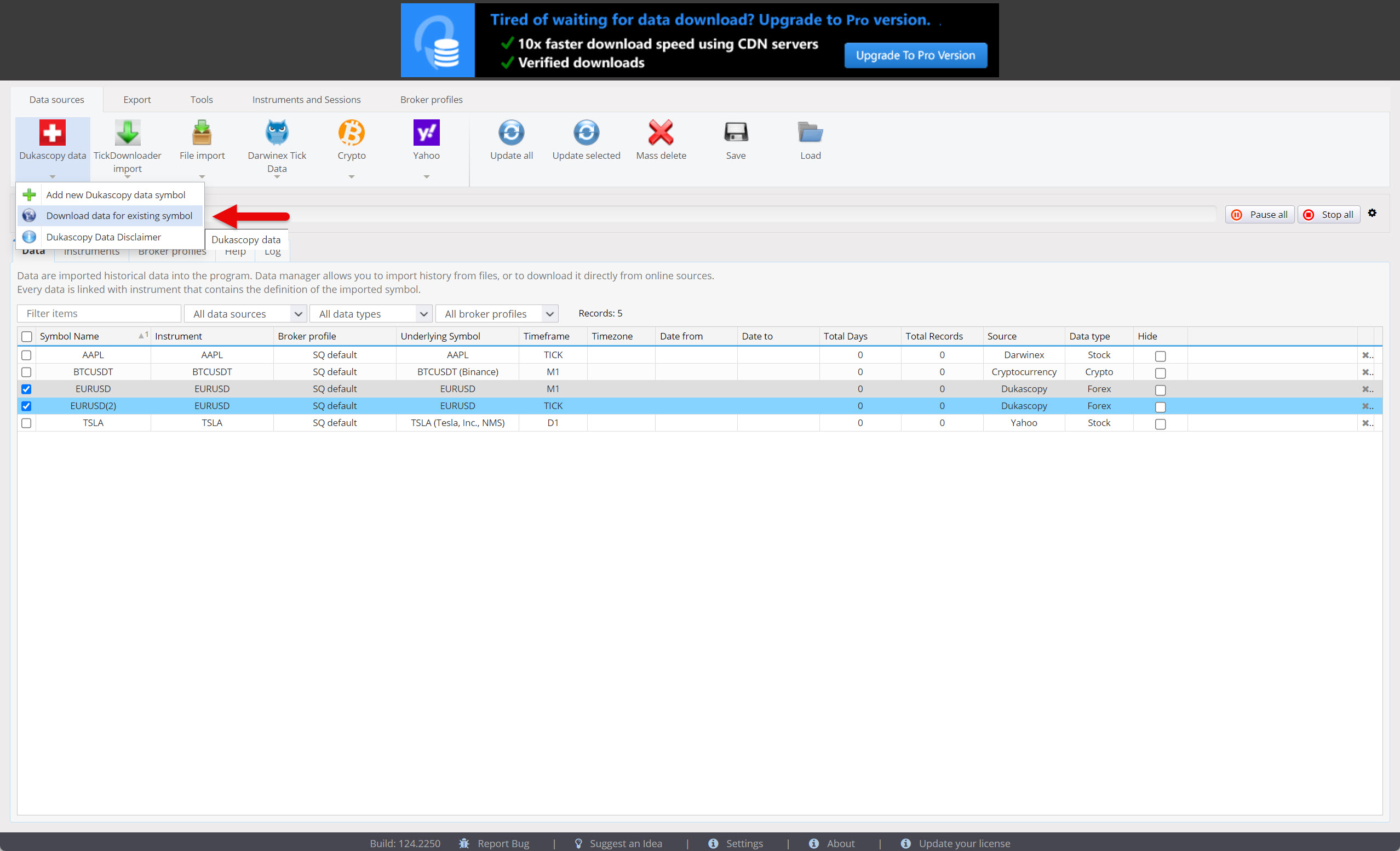
First, select the symbols to download, then click on the Dukascopy Data button in the Data sources tab and select Download data for existing symbol from the menu.
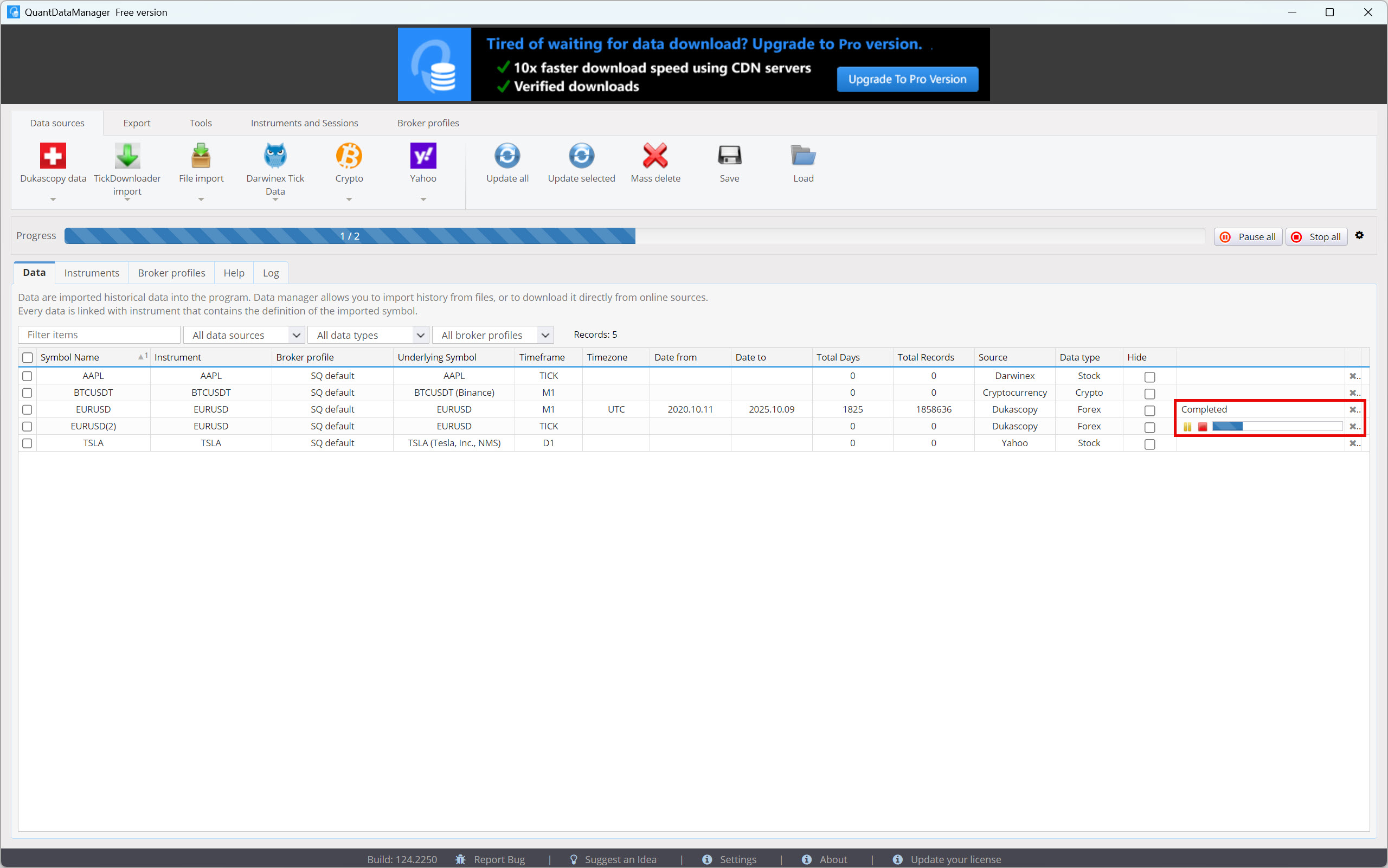
The historical data will start downloading, which is indicated by a progress bar.
The 1-minute data is usually downloaded within a few minutes, while tick-by-tick data can take several hours to download. The download time depends on server load, your internet speed, and the volume of data you request.
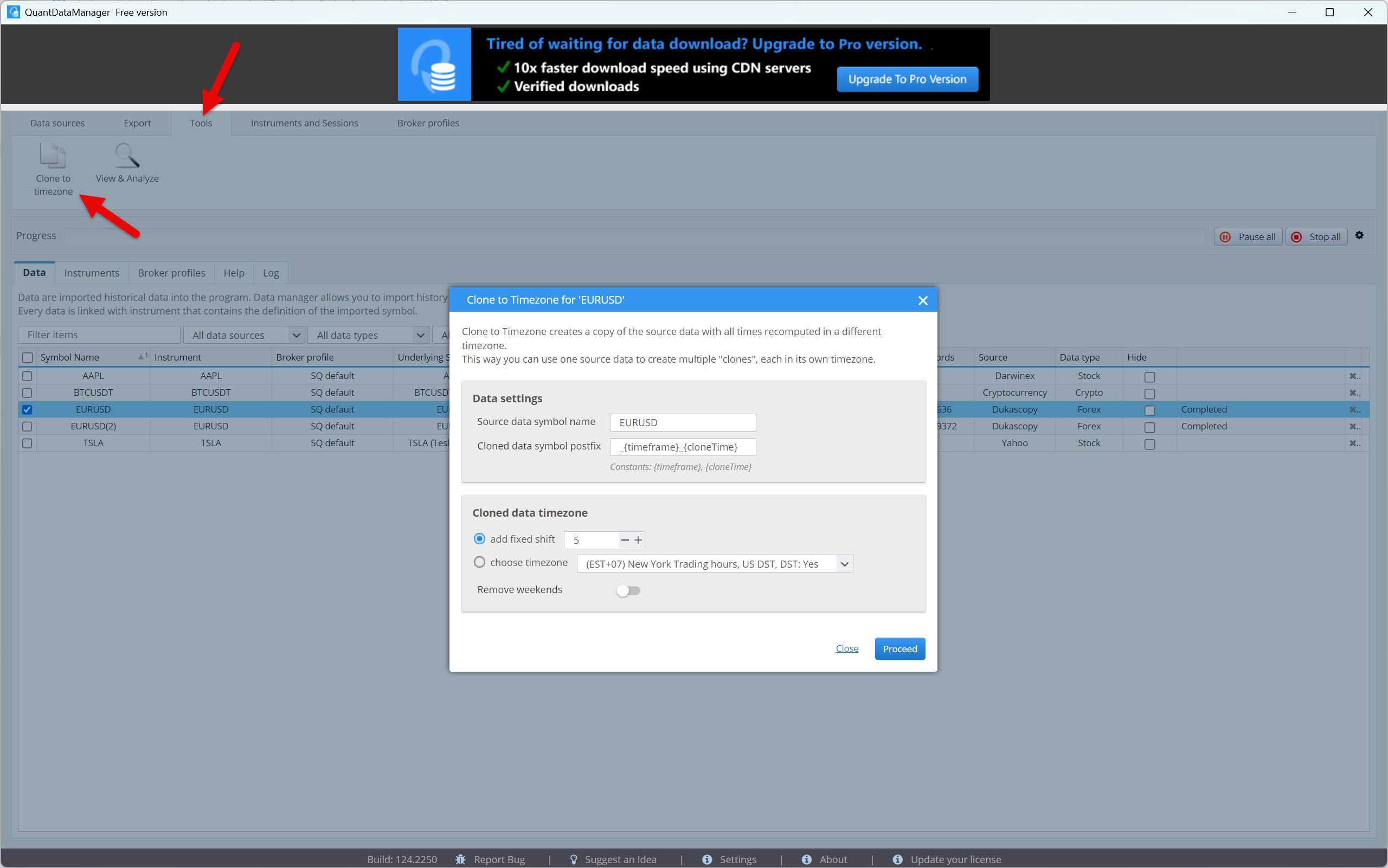
Data downloaded from the Dukascopy server is in UTC format. However, if you prefer a different time zone, you can convert it.
Go to the Tools tab, select the symbol to convert, and click the Clone to time zone button.
Select the time zone or data shift by a certain number of hours and press the Proceed button.
Now you are ready to export your data.
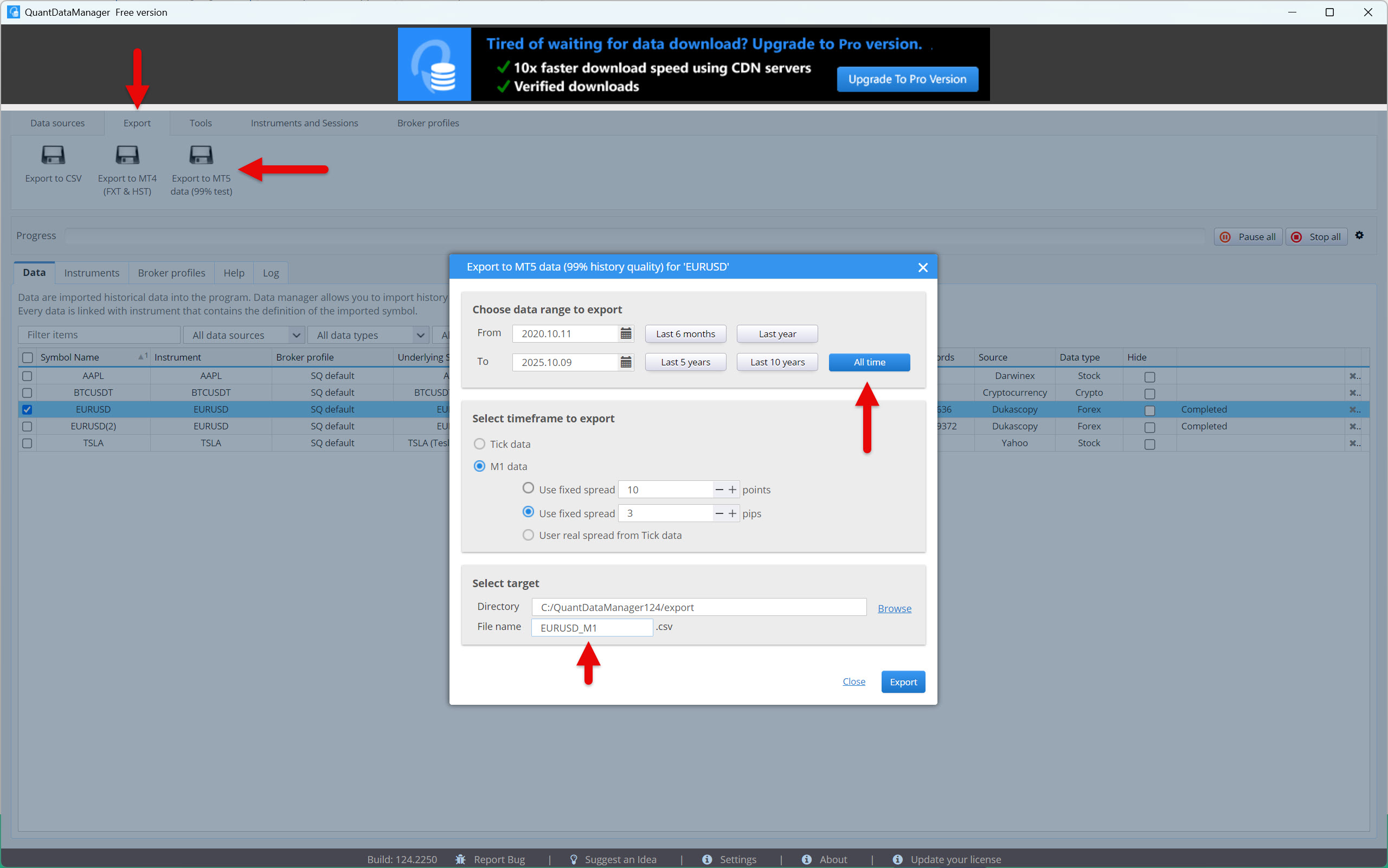
Start by selecting the data (symbol) you want to export. Then go to the Export tab and click on the Export to MT5 data (99% test) button.
In our example, we will first export minute data and then tick data. We want to export the entire history, so we will select the All time option. We will label our 1-minute data as EURUSD_M1 and the tick-by-tick data as EURUSD_Tick.
Please note that Metatrader 5 doesn’t support computing higher time frames from tick data. To calculate higher time frames, 1-minute data is required. Thus, if you want to do a backtest with tick-by-tick precision, you always need to import both 1-minute (M1) and tick-by-tick data.
Once everything is set up the way you want, press the Export button.
Great! Now all you need to do is import the data into your MetaTrader.
Launch the MetaTrader 5 trading platform and right-click in the Market Watch window to display the menu, from which you select the Symbols option. You can also use the Ctrl+U keyboard shortcut instead.
We will create a new symbol for our downloaded historical data, as the EURUSD pair is already in the platform and uses the broker’s data.
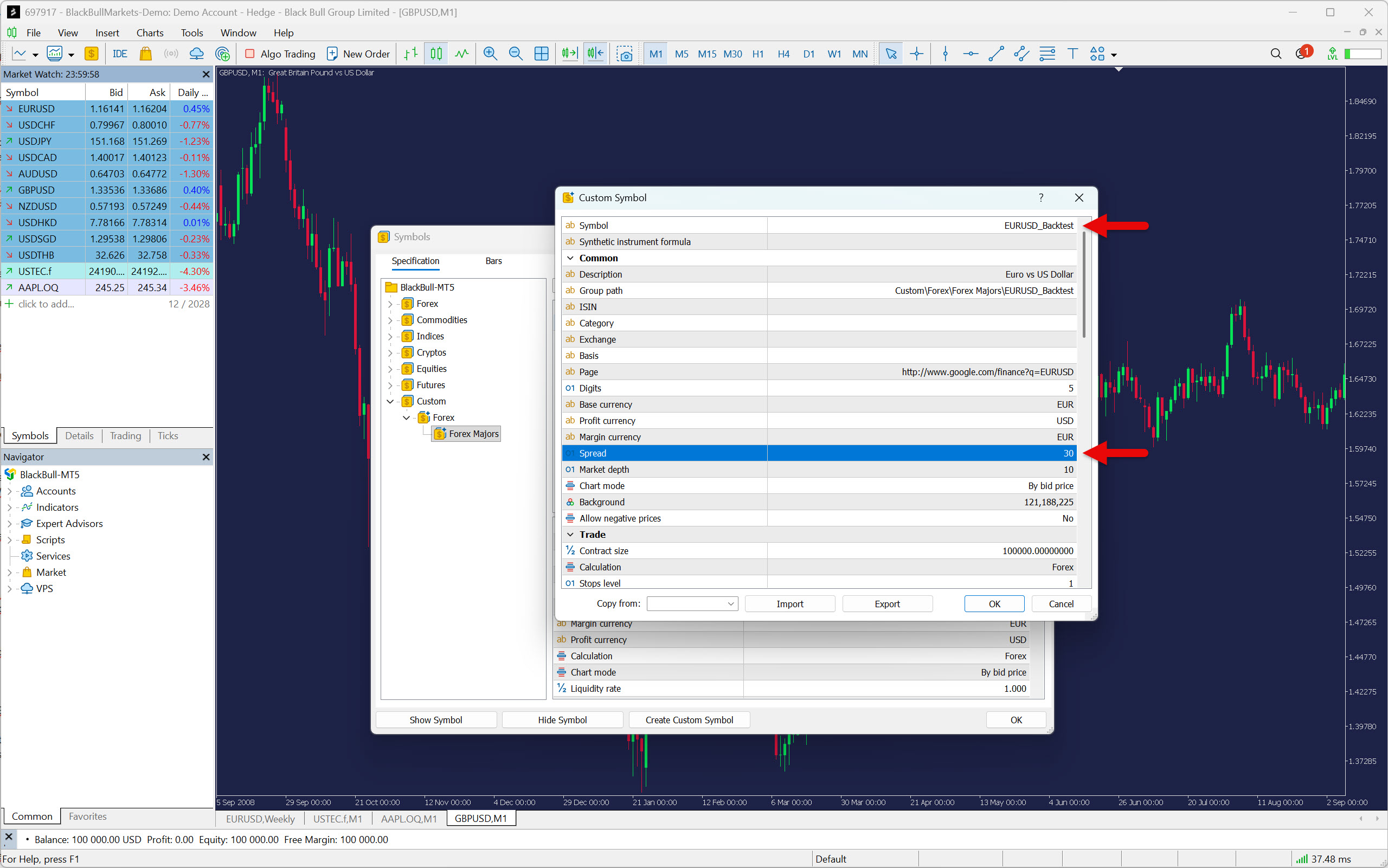
Click on the Create Custom Symbol button and add a prefix or suffix to the symbol name so that it can be clearly identified. For example, EURUSD_Backtest.
If you want to use a variable spread from tick data, leave the spread set to floating. In our example, however, we are using a fixed spread, so we will enter the value 30 in the Spread field, which corresponds to 3 pips. Once you are done, press the OK button.
The last thing left to do is import data from Quant Data Manager.
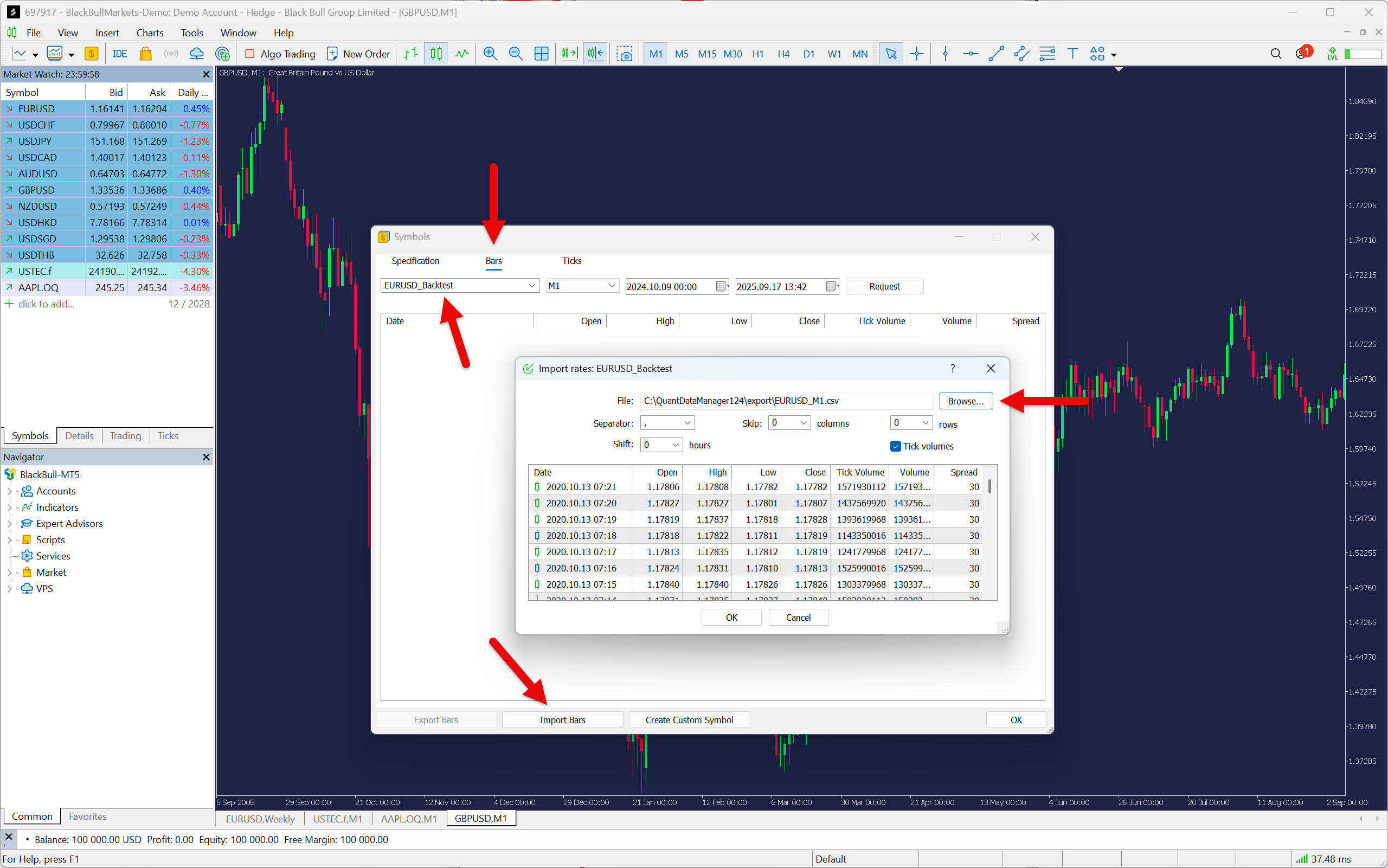
Go to the Bars tab and find your newly added symbol. Then press the Import Bars button and then Browse to find the file with minute data. After pressing the OK button, the data will start importing.
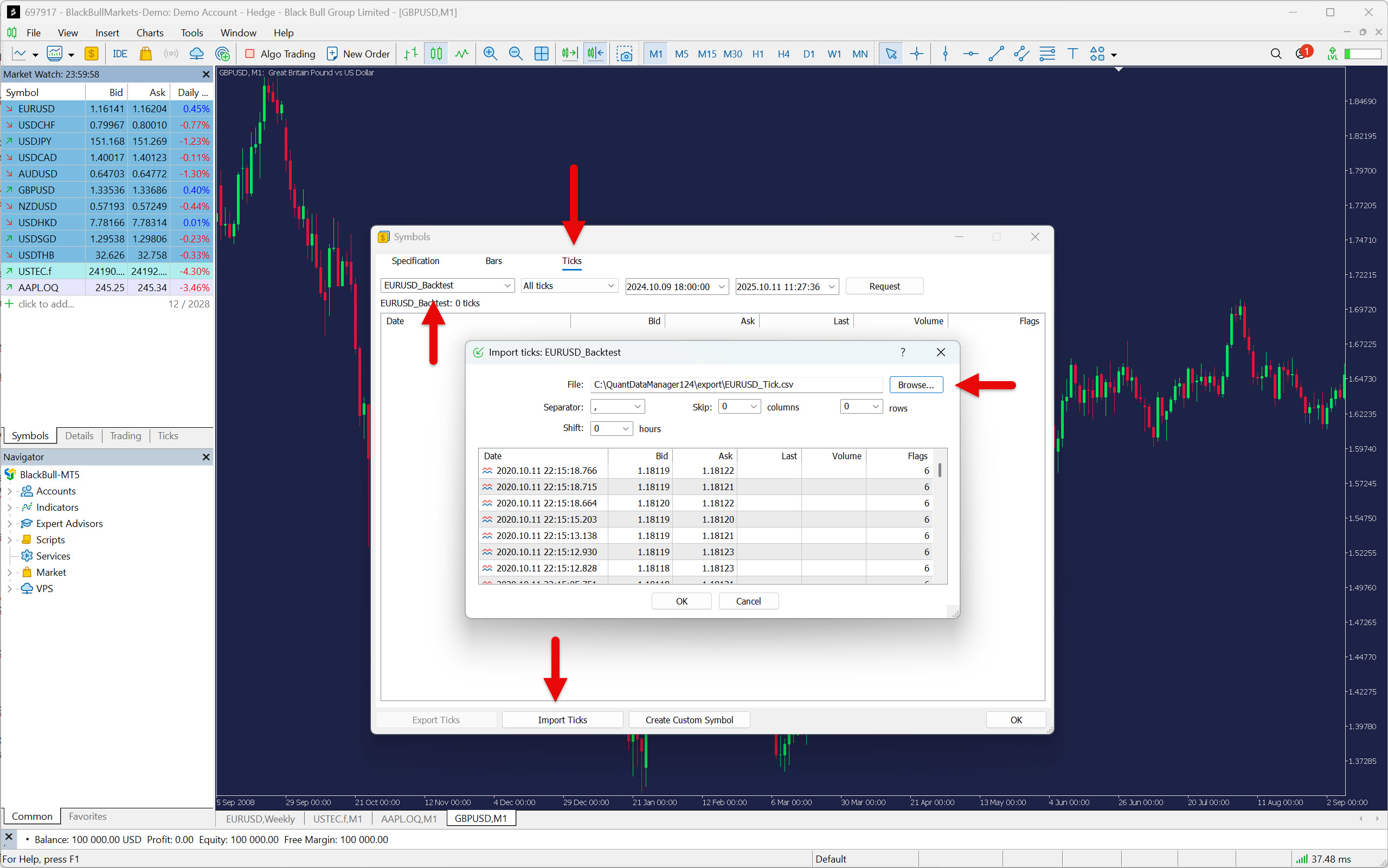
Repeat the same process to import tick-by-tick data.
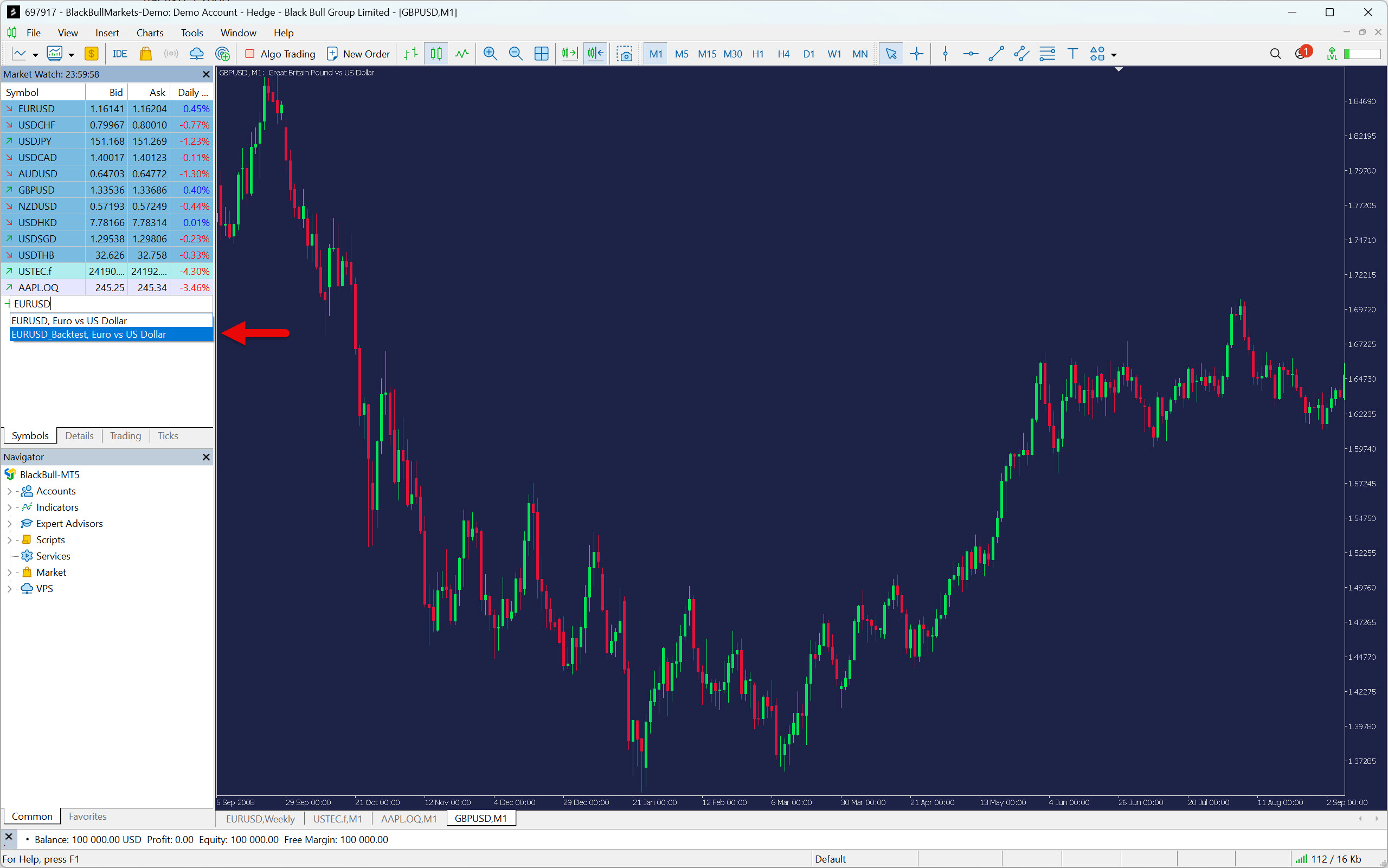
Finally, add your symbol to the Market Watch window, and you are ready to backtest.
Trading Plan
There is a well-known saying that goes, “Failing to plan is planning to fail”.
Whether you plan to backtest manually or automatically, you should always have a written trading plan that describes the rules of your strategy in detail. You should then store it together with the backtest results in an electronic notebook (OneNote, Evernote) or in a backed-up folder (such as via Google Drive) so that you don’t lose this data.
The topic of trading plans is covered in depth in the How to Backtest a Trading Strategy guide, so there is no need to repeat information that has already been published. However, we will at least provide a brief summary of what a proper trading plan should contain.
Trading plan sections
- Strategy description
- Time frames
- Technical indicators
- Markets
- Trading time
- Entry rules
- Exits rules
- Risk and money management
- Trade management
Backtesting Spreadsheet
When we backtest automatically, the software collects data on executed trades for us. However, if we perform manual backtesting, we have to record the data ourselves. For this purpose, we need a so-called backtesting spreadsheet, which is used not only for recording data but also for analyzing it.
As with the trading plan, the topic of backtesting spreadsheets is covered very well in the How to Backtest and Trading Strategy guide, so there is no need to go into it further here. There, you will find everything you need to know about this indispensable tool for a manual backtesting trader.
For those who are eager to see what a well-designed backtesting spreadsheet looks like, check out our Backtesting Club Trading Journal.
Manual Backtesting of Strategies on Metatrader
The prerequisites for starting manual backtesting are imported historical data, a written trading plan, and a prepared blank (new) backtesting spreadsheet. If you don’t have any of these things ready yet, don’t even bother opening MetaTrader.
To trade for a living, you need to act like a professional trader, which means being properly prepared. So get everything you need ready, and let’s get started!
The MetaTrader 5 trading platform does not have a replay tool, so the only way to use it for manual backtesting is the basic “Candle-by-Candle Chart-Revealing method”.
Here’s how to do it:
Go to your MetaTrader 5 trading platform, open the chart of the market (symbol) you want to backtest, and select the time frame. In this example, it will be a 1-minute EURUSD chart, for which we have prepared data earlier.
Now you need to move to the beginning of the period you want to backtest. There are two ways to do this.
- You can scroll back until you get to where you want to be. However, this method inevitably creates a look-ahead bias that we want to avoid.
- Press the Enter button and, after the input field appears in the lower left corner, enter the date and time you want to move to. The input format can be either DD.MM.YYYY hh:mm or YYYY.MM.DD hh:mm.
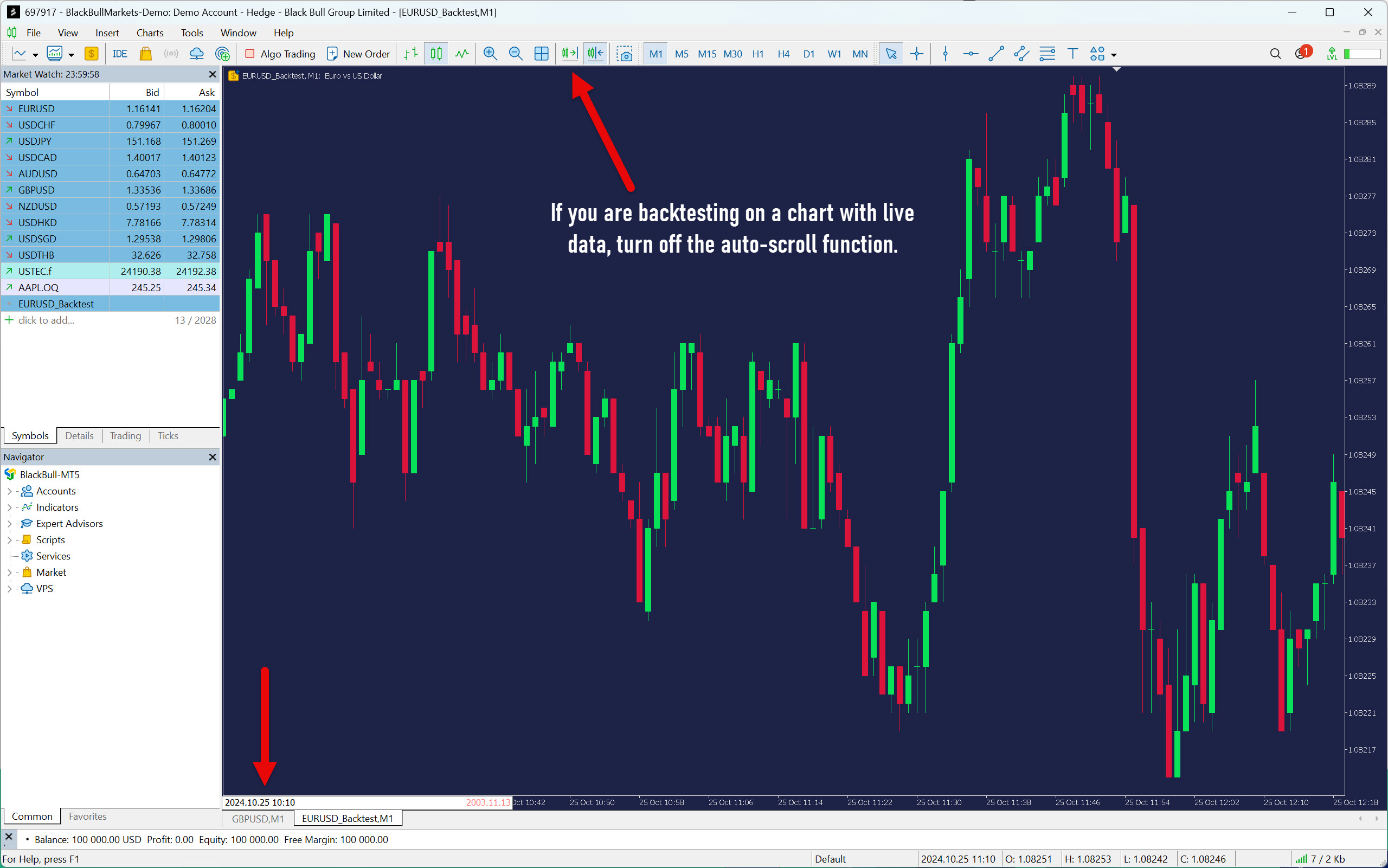
If you are backtesting on a chart with live data, turn off the auto-scroll function so that the chart does not move back to the end after each new tick received.
When your chart is exactly where you want it, you can start backtesting by revealing candle by candle. Press F12 to move one candle to the right.
Sometimes you may need to move back a few candles. For example, when you are taking screenshots before and after executing a trade. In these cases, use the keyboard shortcut Shift+F12.
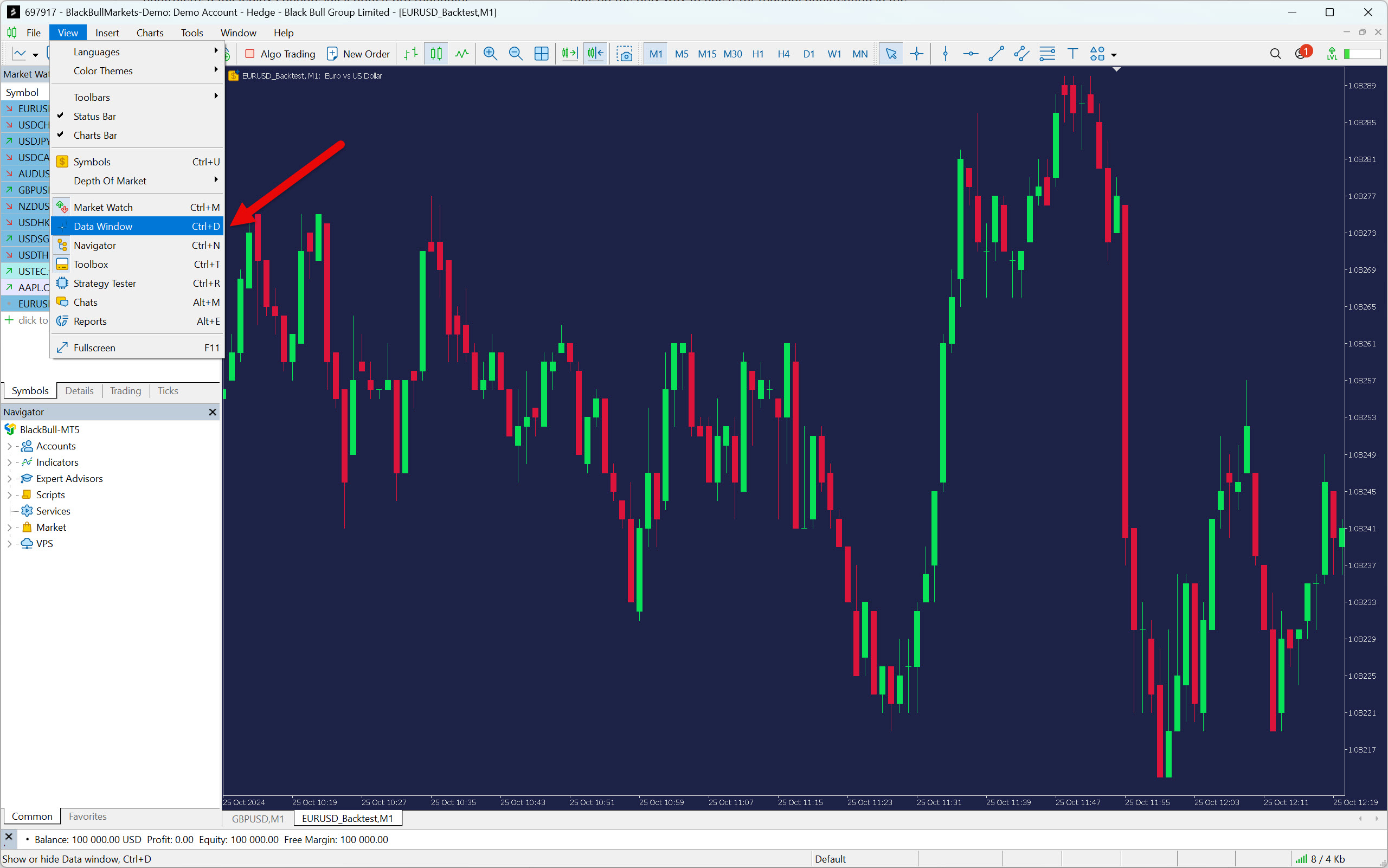
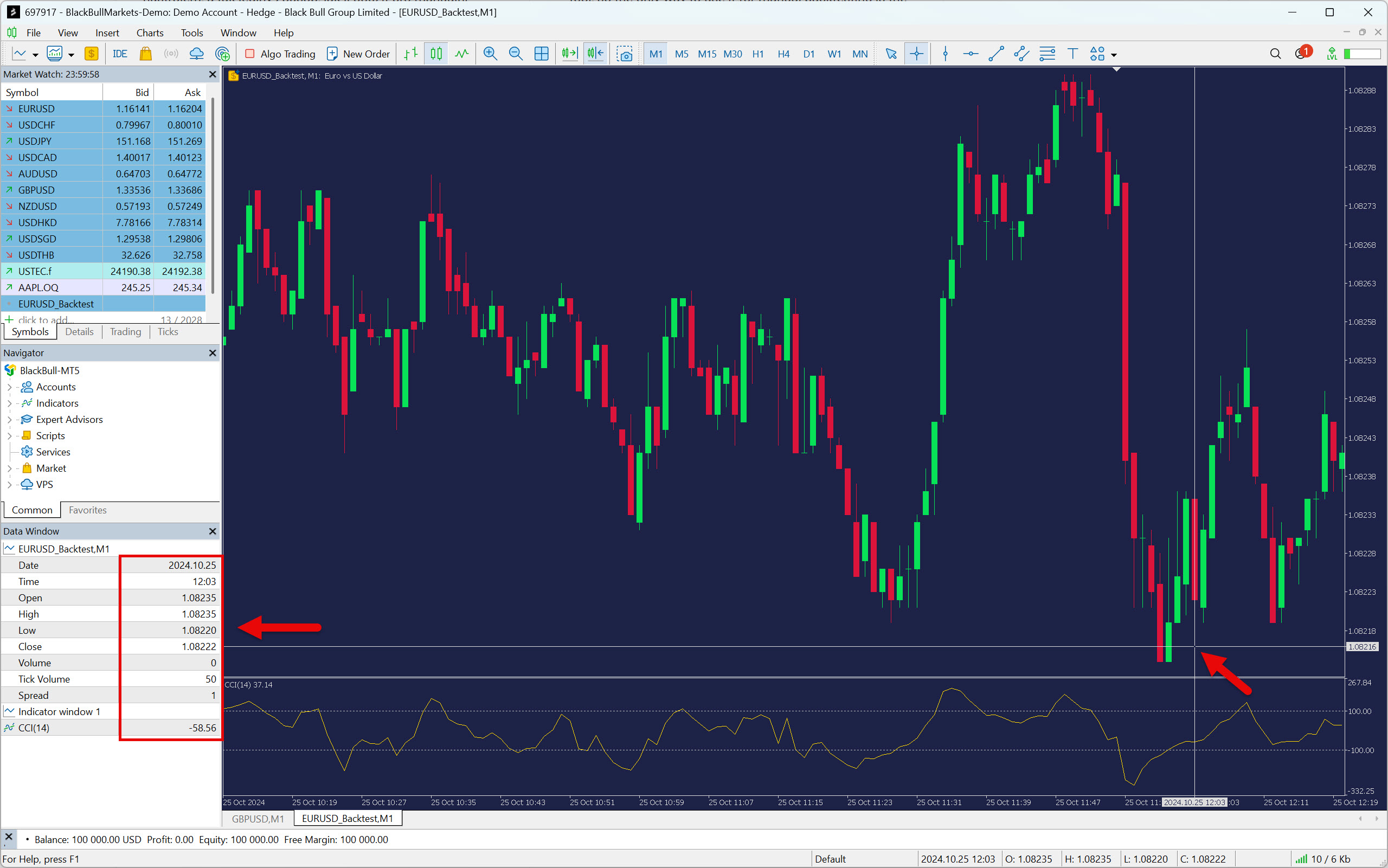
To conveniently read data from the chart, it is also useful to add a Data Window. In the top menu of the platform, click on View and then Data Window. You can also achieve the same result by using the keyboard shortcut Ctrl+D.
The Data Window will show you not only the data for each candle you hover over, but also the indicators found in the chart.
According to the rules of your strategy, collect data diligently and enter it into your backtesting spreadsheet. Collect at least 100 trades so that your backtest has sufficient statistical significance.
Automated Backtesting of Strategies on Metatrader
A prerequisite for starting automatic backtesting in the MetaTrader 5 trading platform is a prepared expert advisor (EA), also known as a trading robot.
An expert advisor is a script written in the MetaQuotes Language 5, which allows its author to convert the rules of their strategy into machine code. This code can then be used in MetaTrader to backtest a given strategy or execute it automatically.
How to get an expert advisor?
There are several ways to get your own trading robot. Here are a few tips on how to get one:
- Program your own EA.
- Build a strategy in a strategy builder (e.g., StrategyQuant).
- Build a strategy using artificial intelligence (e.g., ChatGPT).
- Purchase an EA on the MQL market.
- Purchase an EA from developers outside the MQL market.
- Download an EA for free from the MQL Market.
- Downloading an EA for free from websites and forums.
Each of the above options could certainly be the subject of a separate, comprehensive article. However, for the purposes of demonstrating automated backtesting, we will focus on just one: downloading an EA for free from the MQL Market.
Utilizing Free Expert Advisor From MQL Market
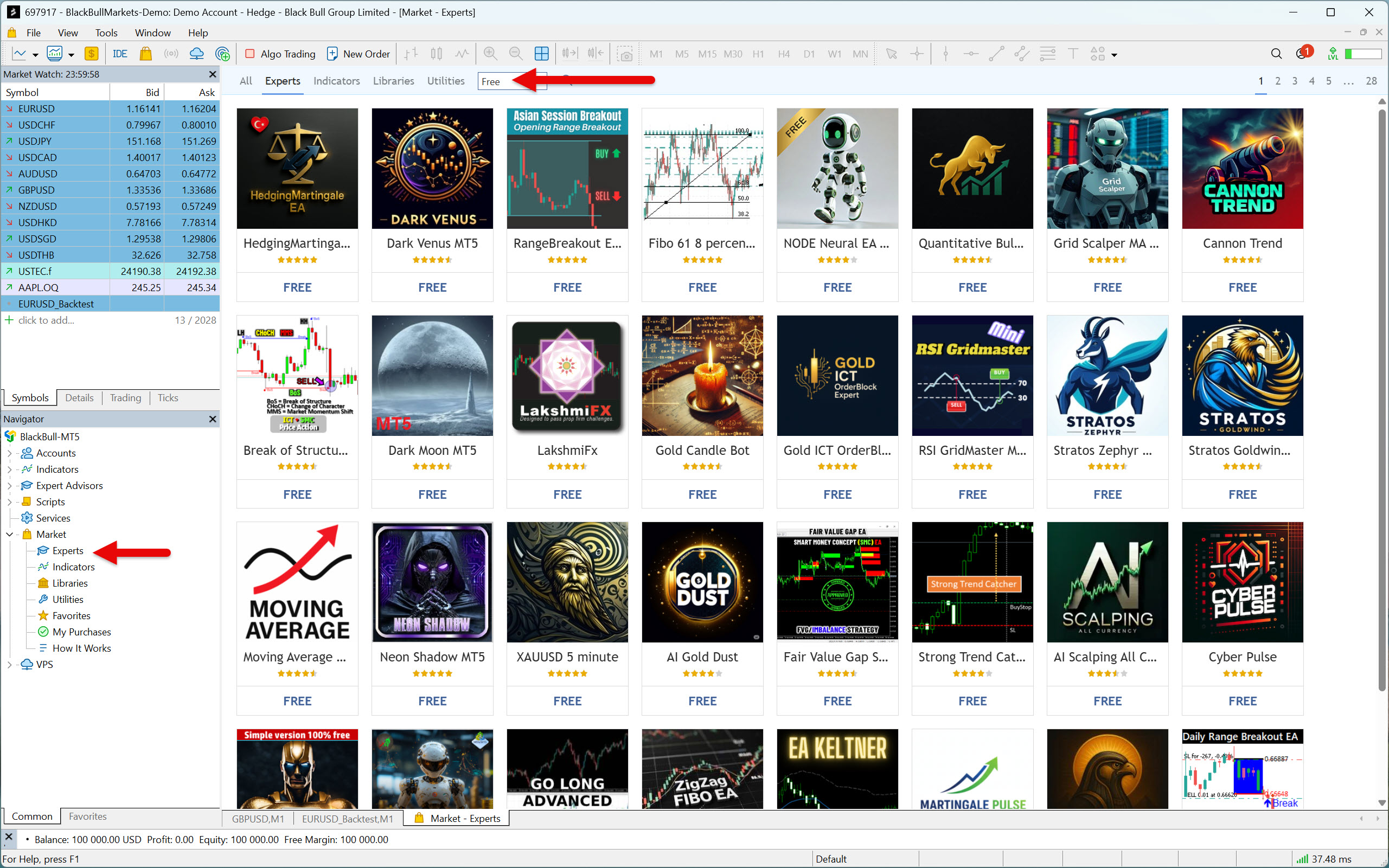
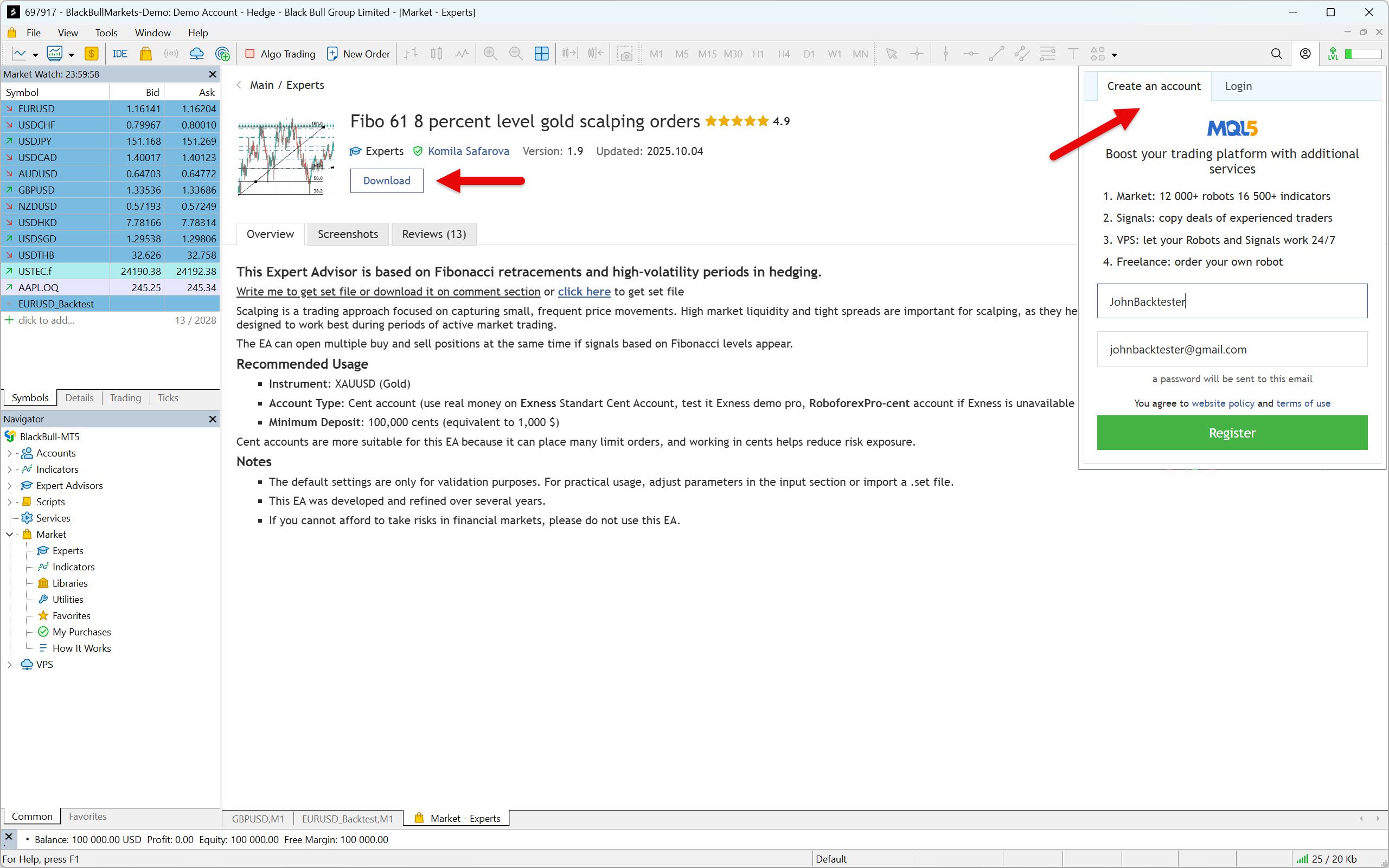
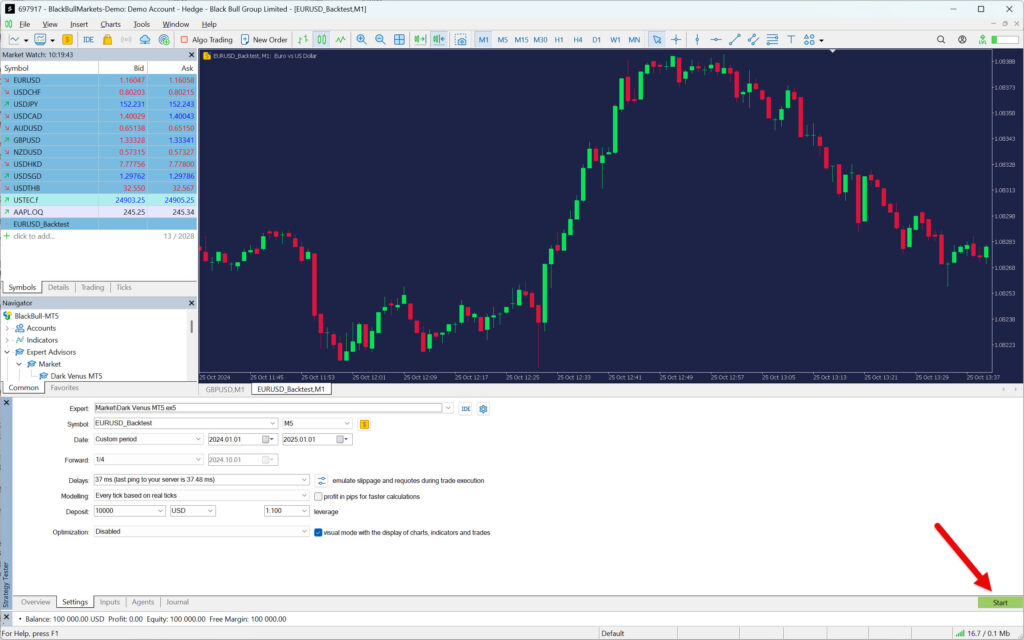
Go to the Navigator window, double-click on Market, and then on Experts. Next, select Free from the top drop-down menu. From the list of free robots, select the one that interests you and press the Download button.
If you do not yet have an account on the MQL Market, you will first need to create one.
Once the EA is downloaded, it will appear in the Navigator window.
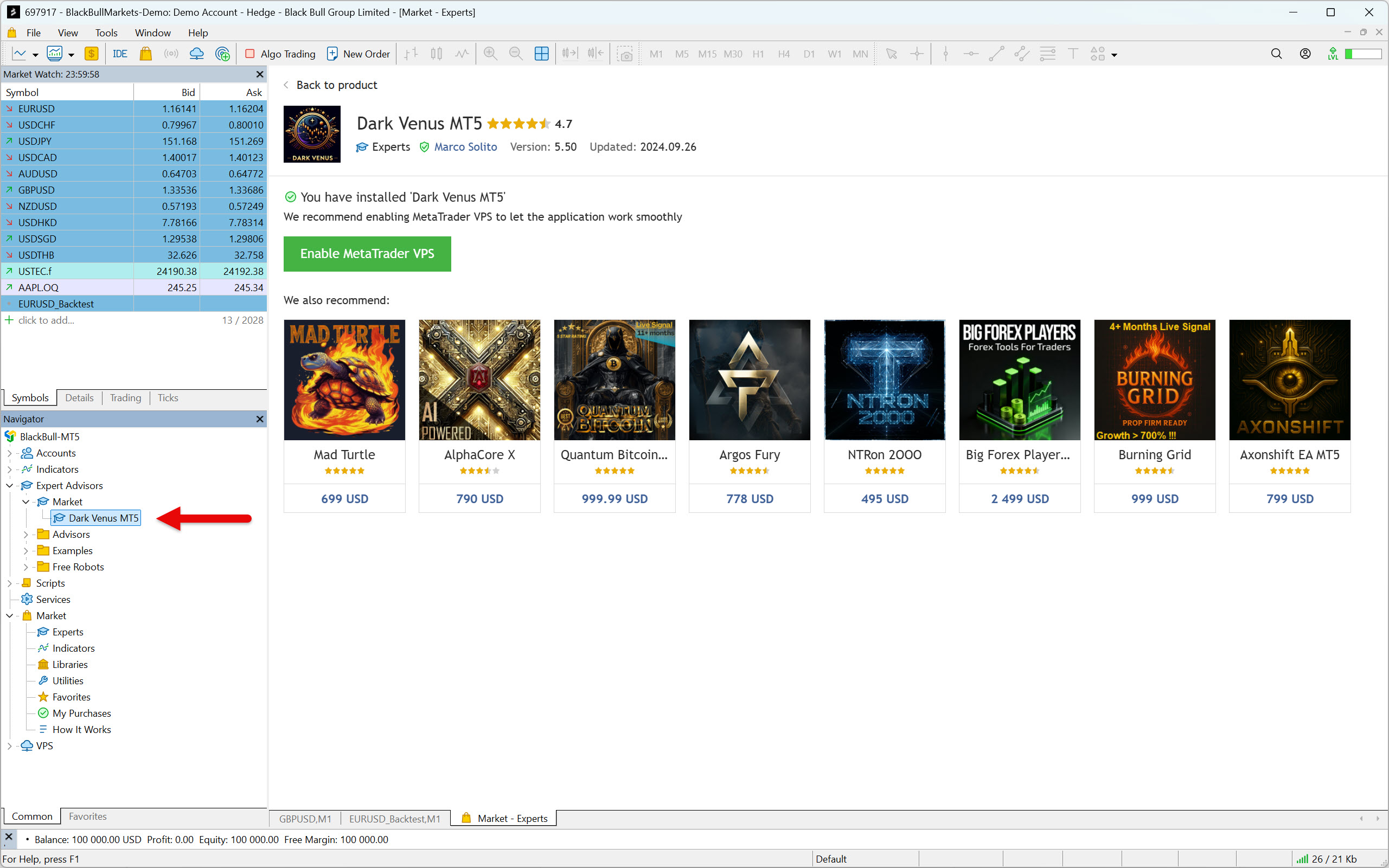
Good, now you have your trading robot, and we can move on to testing it.
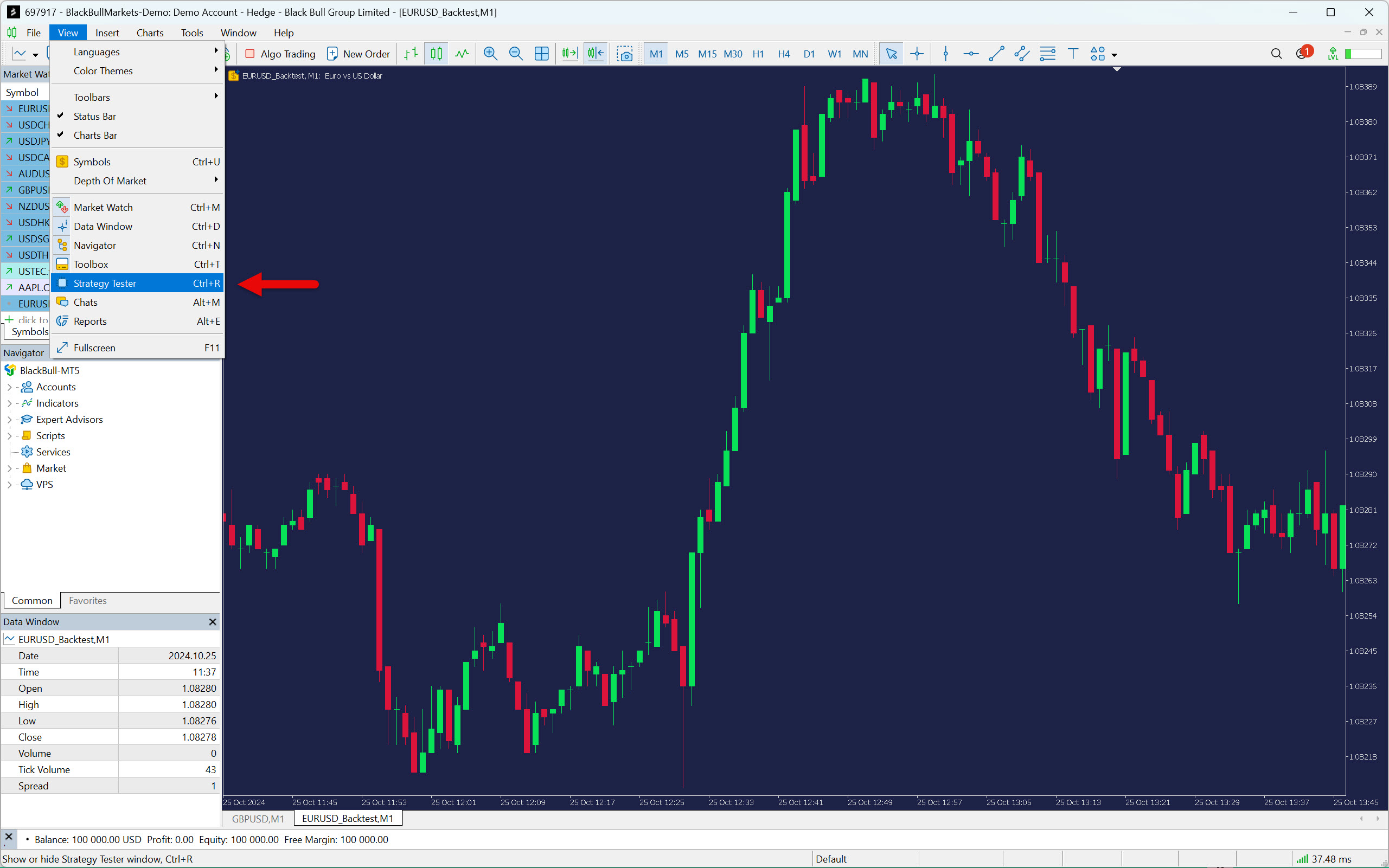
From the top menu of the platform, select View and then Strategy Tester. To speed up your work in MetaTrader 5, you can also use the keyboard shortcut Ctrl+R.
The Strategy Tester allows you to test strategies (Expert Advisors) and indicators. However, we are only interested in the first option, so click on Single.
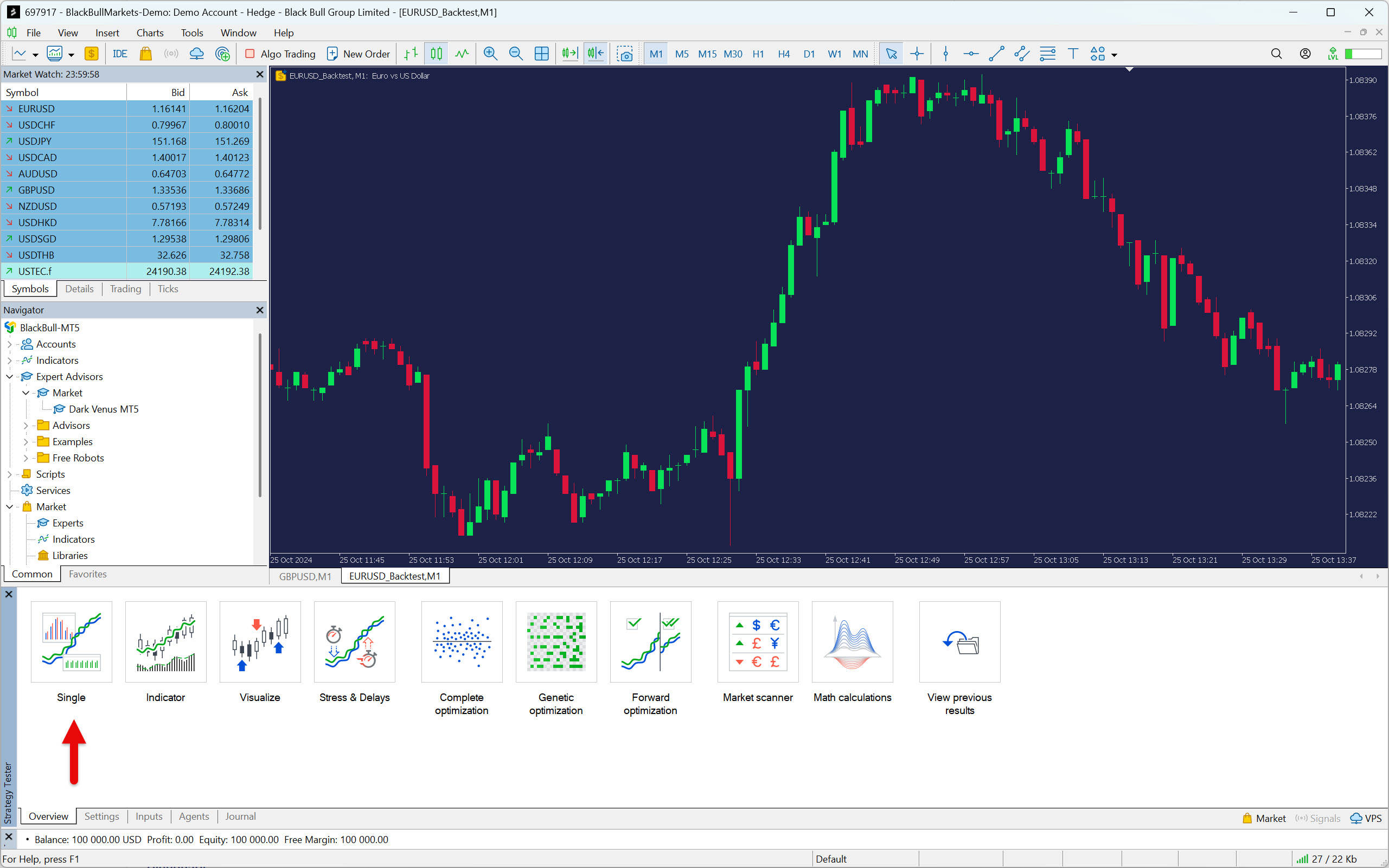
In the Settings tab, gradually set up the expert advisor according to your requirements. Start by selecting it.

Next, select the symbol for which you previously downloaded the data and the time frame that your strategy (EA) uses.

Select the period during which the robot will be tested.
If you want, you can divide the data into in-sample and out-of-sample using the Forward setting. In this case, the strategy tester will create two reports, one for each period. To demonstrate this option in practice, we will select option 1/4, which means that the tested period will be divided into 75% in-sample and 25% out-of-sample.

An interesting thing that can be set for automated backtesting is order execution simulation. If you want the results to be as close as possible to the reality of live trading, set this value according to the ping to the server.

Another thing that needs to be set is the modeling quality, which defines how the strategy tester should use historical data. There are five options overall:
- Every tick: Ticks simulated by MetaTrader. Not suitable for accurate backtesting.
- Every tick based on real ticks: If reliable data is used, this is the most accurate backtesting model. Suitable for scalping and intraday strategies.
- 1-minute OHLC: Backtesting with Open, High, Low, and Close prices of 1-minute candles. Usually sufficient for strategies using 15-minute charts and higher.
- Open prices only: A model for a specific type of strategies, entering and exiting based on opening price values.
- Math calculations: Model for mathematical calculations. Not intended for backtesting markets.

The logic of your strategy (expert advisor) dictates which model to use. For example, if your strategy looks for entry conditions on an hourly chart, it is probably not necessary to use a model utilizing real ticks. Using a 1-minute model will absolutely suffice.
In our example, we chose a 5-minute time frame to test a scalping strategy. Therefore, we will apply a model leveraging real ticks.
If you want to understand the models in more depth, check out the article Testing trading strategies on real ticks.
Continue setting up the EA and select the initial capital (deposit) and leverage the strategy should work with.
MetaTrader can not only test strategies, but also optimize them. However, this process requires a deeper understanding of how automated trading systems work.
Optimizing a strategy can significantly improve its results, but if you don’t understand how to determine whether you have over-optimized it, it is better to avoid this process.
We will not be using optimization, so we will leave this setting at Disabled.

The settings also allow you to visually monitor the progress of the backtest. However, take into account that the backtesting process is slower this way.
The feature is primarily used to verify whether the EA executes trades exactly as intended. It is therefore more suitable for shorter backtests. So, if you want to see how the strategy performs individual trades, activate the visual mode with the display of charts, indicators, and trades option.
For demonstration purposes, we will turn it on.

The last thing you can set before running an automatic backtest is the strategy parameters. Go to the Inputs tab and set the expert advisor parameters as you wish.
Please note that each EA has different inputs, as they are defined by its developer.
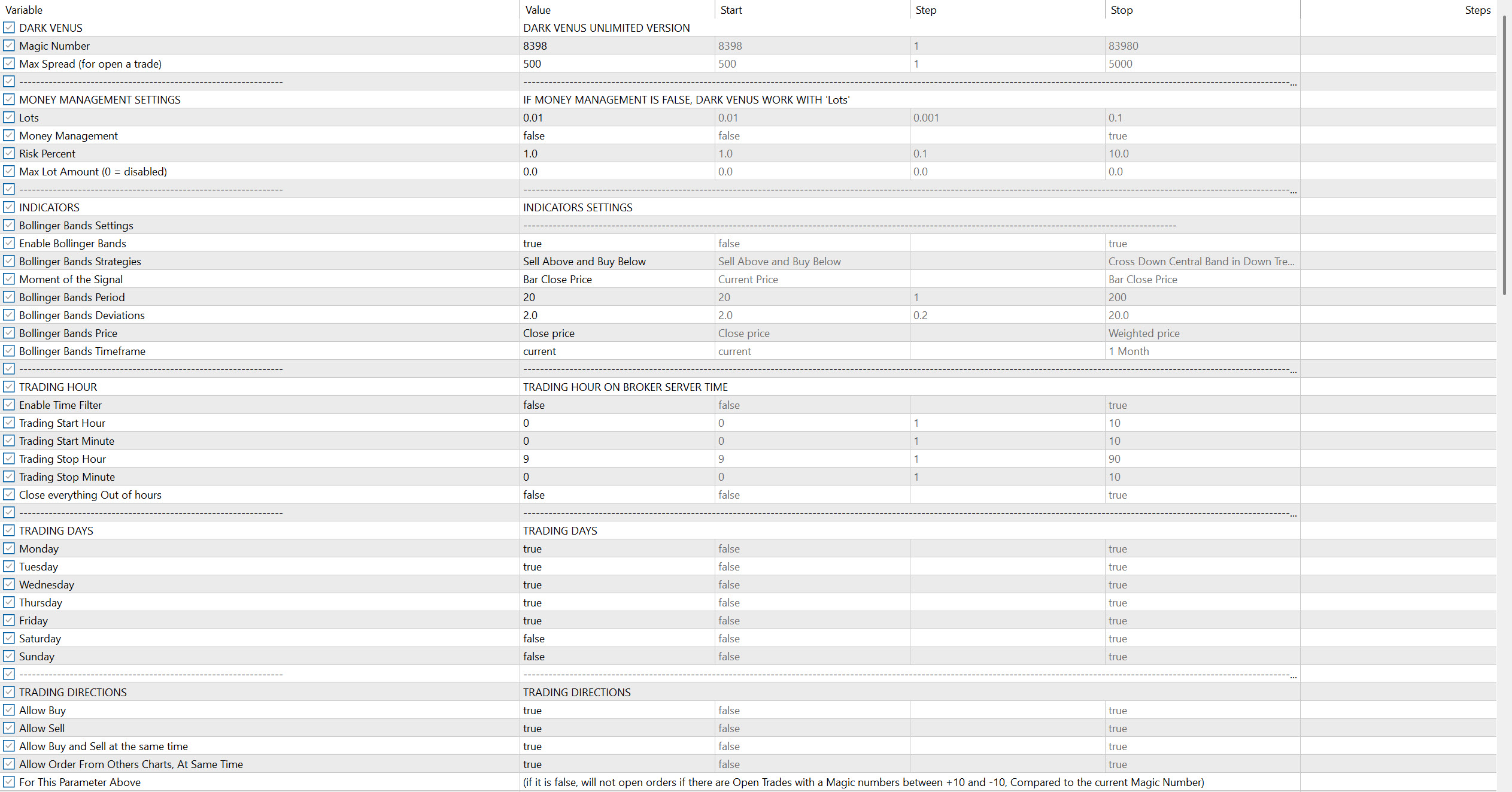
Great! Now all you have to do is press the Start button to initiate the automatic backtesting process.
If you have enabled visual backtesting mode, a new window will appear where you can watch the execution of trades. In the top bar of the window, you can also change the speed of the backtesting itself.
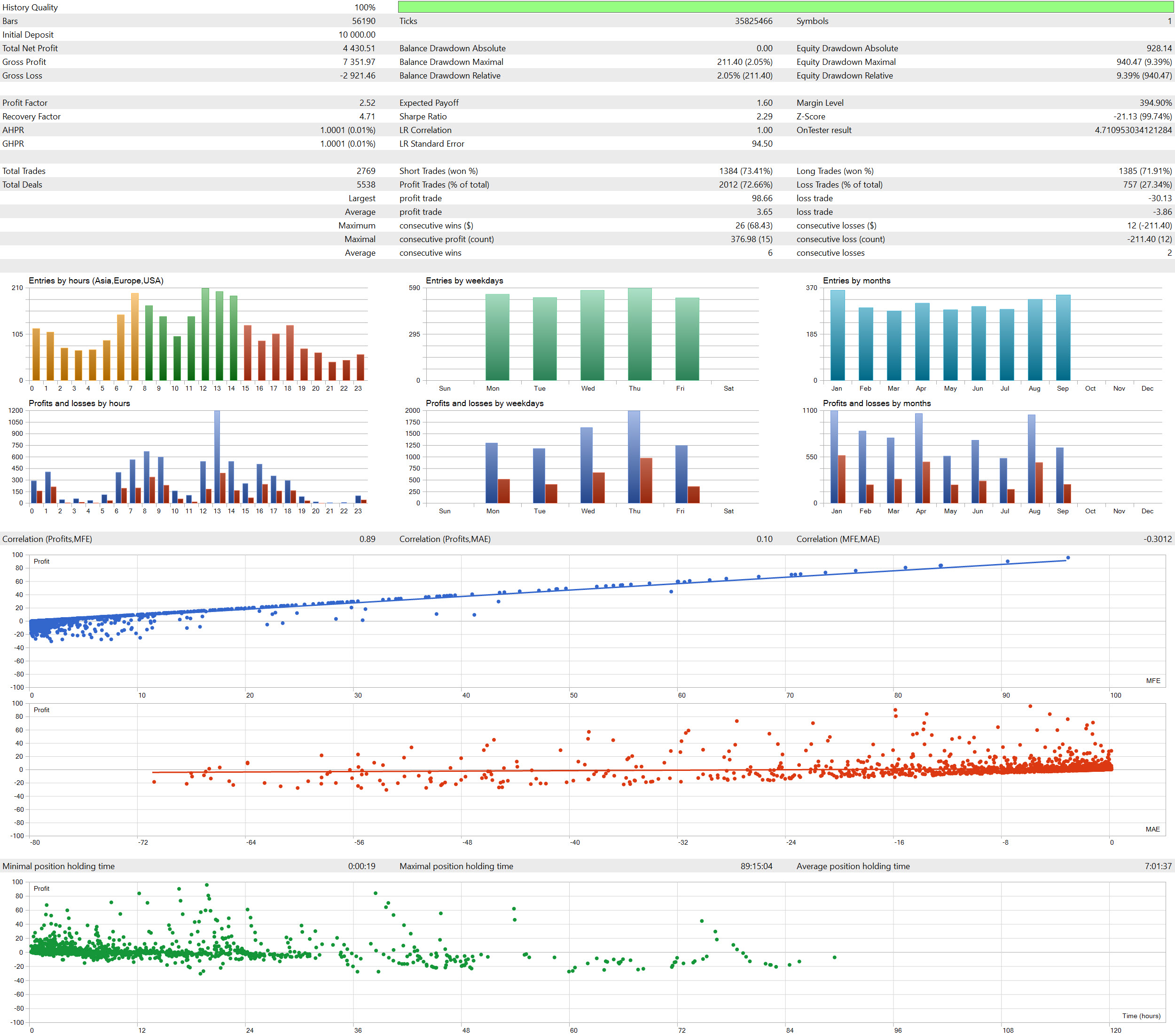
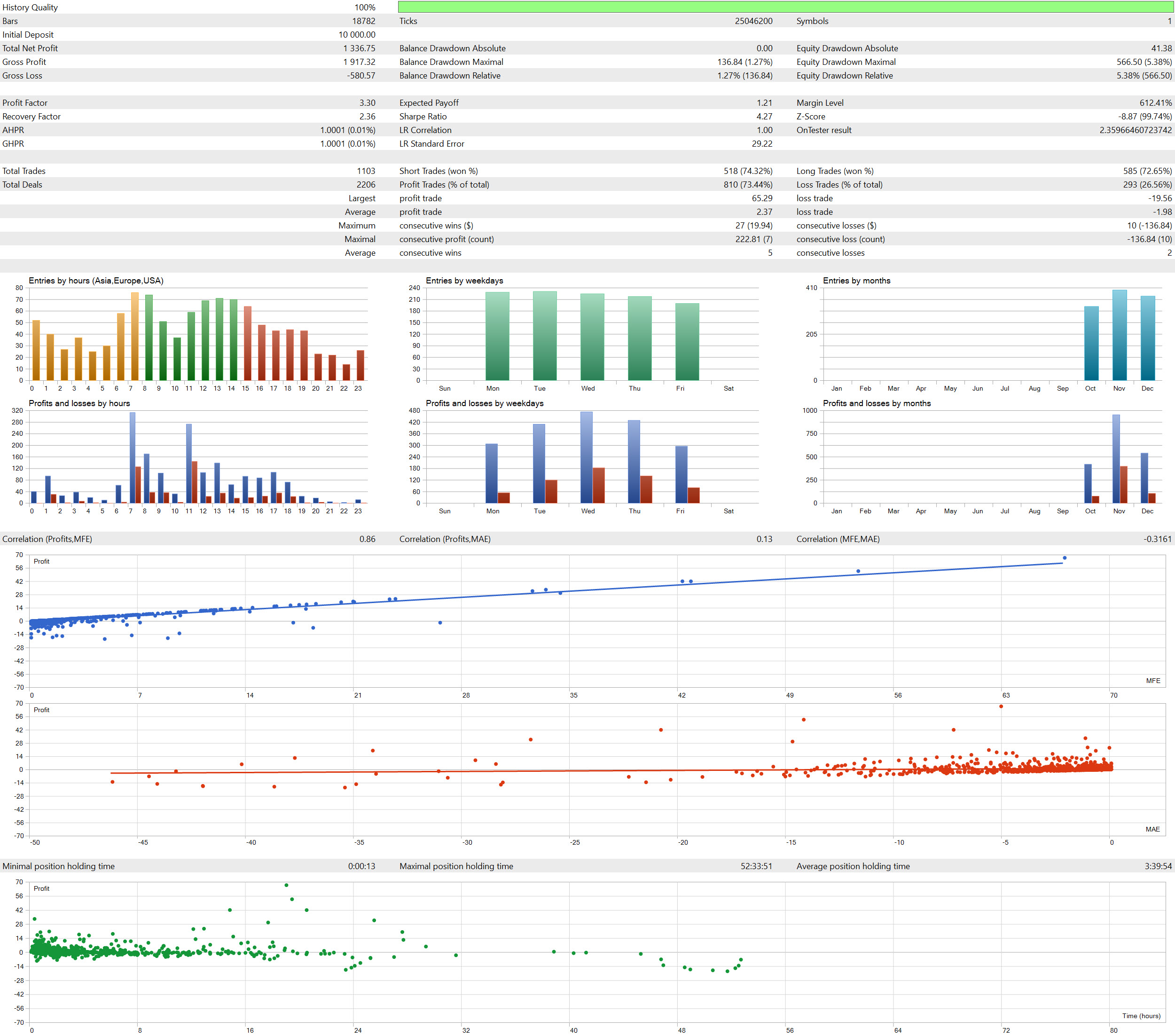
Once the backtesting process is complete, three new tabs will appear in the strategy tester: Backtest, Forward, and Graph.
The Backtest tab shows the results for the in-sample period, while the Forward tab provides the results for the out-of-sample period.
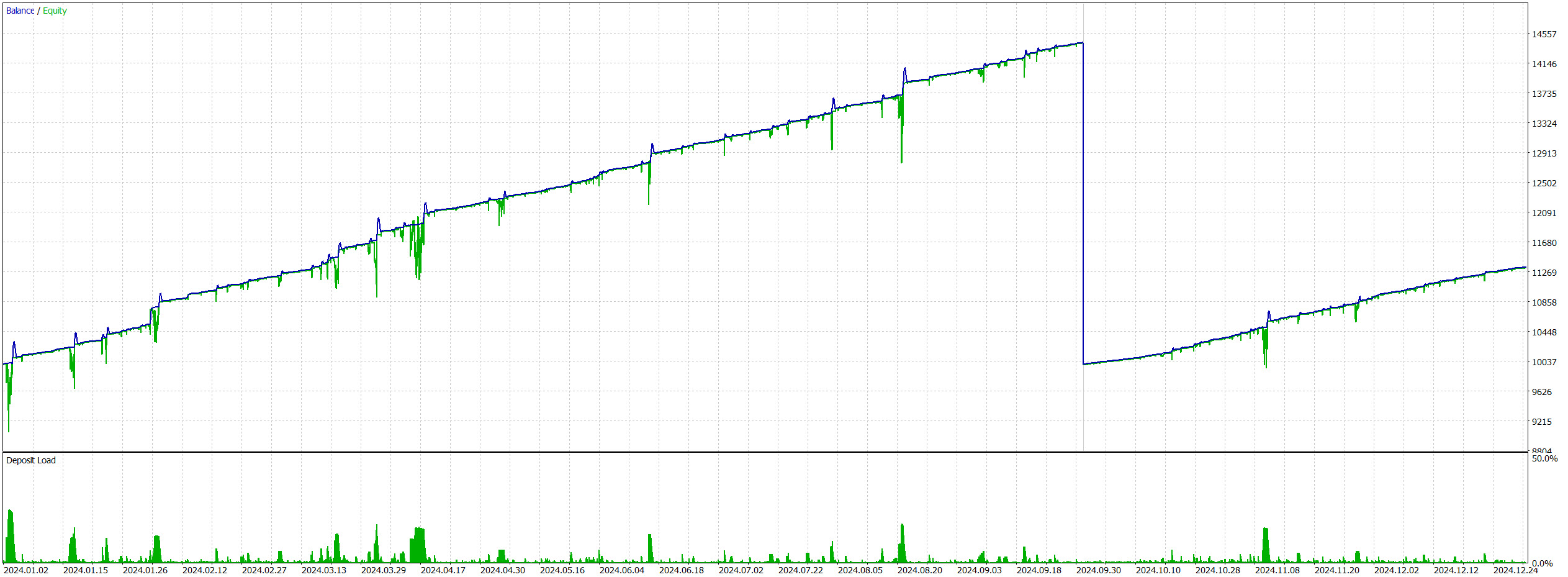
The Graph tab presents the resulting equity curve.
Frequently asked questions
Why does this guide not show backtesting on the MetaTrader 4 platform?
MetaTrader 4 (MT4) is a quite outdated trading platform with very limited functionality. In contrast, MetaTrader 5 offers more advanced features, including a more sophisticated strategy tester.
What are the best alternatives to MetaTrader in terms of backtesting?
Well, that’s not an easy question to answer. It will depend greatly on which market you want to test and how.
If you are willing to spend a few dollars on a subscription to a professional trading platform, then Sierra Chart is recommended. It is a truly versatile platform, equipped with an advanced replay tool and a built-in downloader for easy access to historical data.
For traders looking for an automated backtesting solution, the TradeStation or Amibroker trading platforms are particularly interesting. They are very popular among traders focused on developing automated trading systems, especially for their ease of backtesting.
Conclusion
Backtesting is a crucial step in developing and refining any trading strategy.
This practical guide has shown you how to backtest on the MetaTrader 5 trading platform and provided all the information you need to get started. You have learned where and how to obtain quality historical data and how to use the platform for both manual and automated backtesting. In addition, thanks to the newly discovered keyboard shortcuts, your work will be much faster.
You now have everything you need to start your first backtesting session. So don’t hesitate, and dive right in!
